

 Information
Notifications
Tutorials
193. Display a Crosshair Symbol When Hovering the Stylus Pen
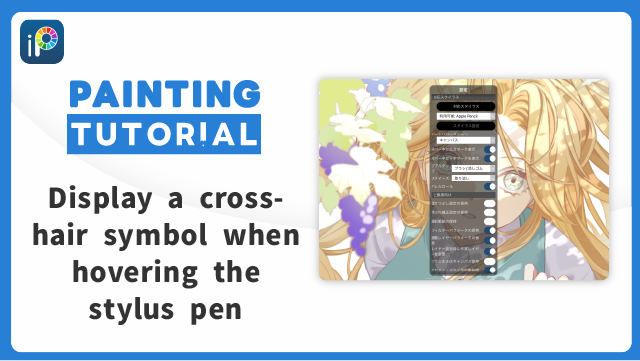
With Apple Pencil, stylus pens, and various pen tablets that support the hover function, the "thickness mark" and "cross mark" can be displayed when the stylus pen is hovered.
Displaying the "thickness mark" or "cross mark" is useful because it allows you to know the exact position to apply the stylus tip before drawing and the current brush thickness.
In this example, both "thickness marks" and "cross marks" are displayed during hover of the Apple Pencil.
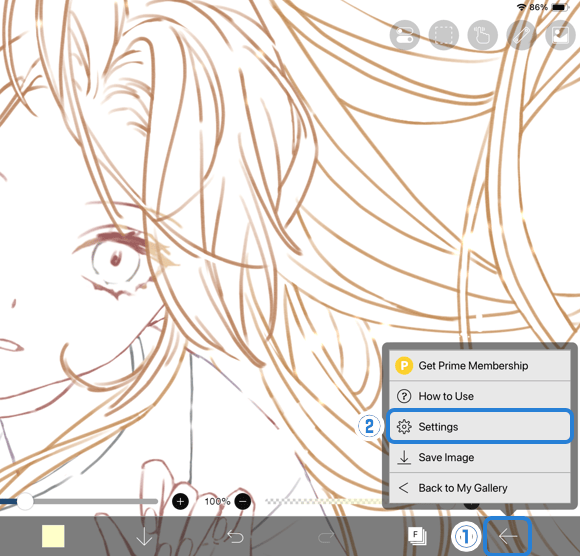
Tap ①[ Back ] and select ②[ Settings ].
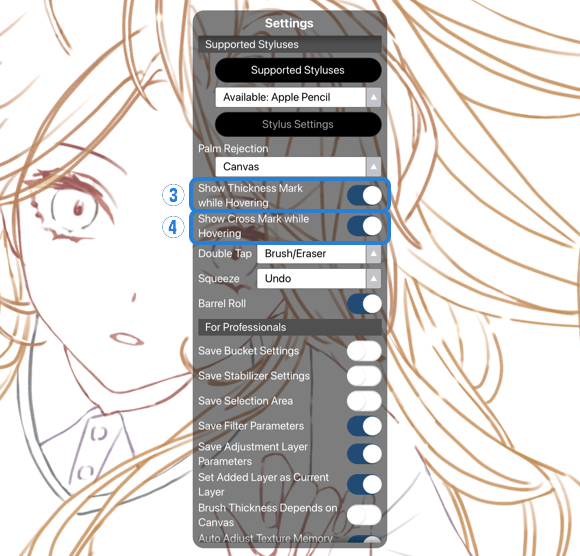
The "Settings Window" will open. Turn on both ③[ Show Thickness Mark while Hovering ] and ④[ Show Cross Mark while Hovering ].
③[ Show Thickness Mark while Hovering ] … When turned on, a "thickness mark" is displayed at the position of the pen nib on the screen to indicate the thickness of the brush or eraser. If you change the size of the brush or eraser, the size of the "thickness mark" will change accordingly.
④[ Show Cross Mark while Hovering ] … When turned on, the position of the pen tip on the screen is displayed as a "cross mark".
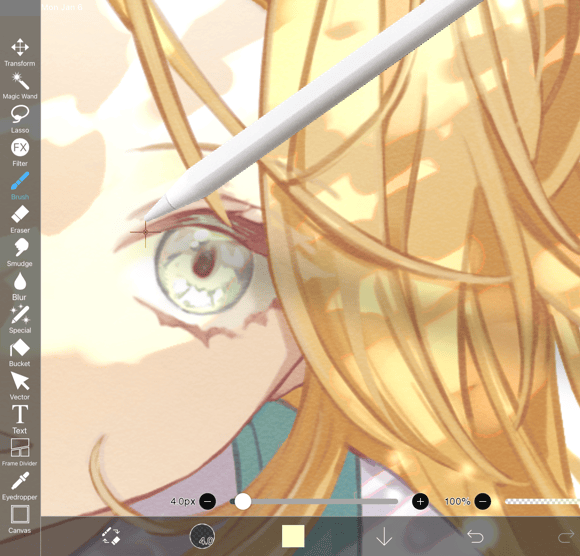
When the Apple Pencil is hovered on the screen, both the "thickness mark" and the "cross mark" appear at the nib position.
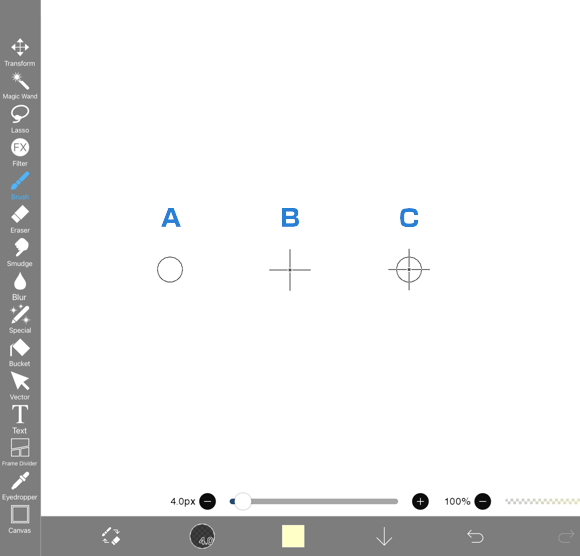
The "thickness mark" and "cross mark" can be displayed separately.
A … Display only the thickness mark
B … Display only cross marks
C … Display both thickness marks and cross marks
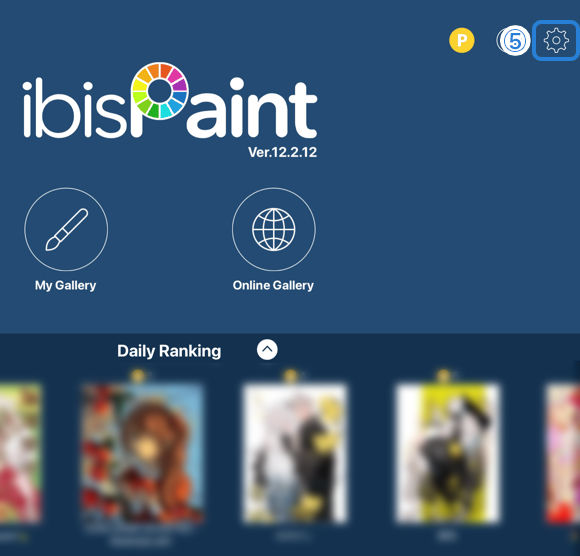
The "Settings Window" can also be opened from the home screen under ⑤[ Settings ].
 Display a Crosshair Symbol When Hovering the Stylus Pen
Chapter
-
 01.Introduction
 -
 02.Start Creating an Artwork
 -
 03.Toolbar and Tool Selection
 -
 04.Do Your Draft Sketch by Hand
 -
 05.About Layers
 -
 06.Let's Trace
 -
 07.Undo and Eraser
 -
 08.Fine Tuning Using the Lasso tool
 -
 09.Check by Reflecting Horizontally
 -
 10.Select Colors in the Color window
 -
 11.Use Color Fill for the Undercoat
 -
 12.Turn Clipping On
 -
 13.Making a Gradation (Shading)
 -
 14.Select a color from the canvas or layer
 -
 15.Set the Time before Quick Eyedropper Starts
 -
 16.Create Highlights and Shadows
 -
 17.Paste a Texture
 -
 18.Let's Merge Layers
 -
 19.Sign Your Artwork
 -
 20.View Your Artwork
 -
 21.Post Your Artwork
 -
 22.Share Your Artwork
 -
 23.Open your ibisPaint data in Clip Studio Paint
 -
 24.Premium Membership / Ad Removal Upgrade (for iPhone/iPad, Android)
 -
 25.Premium Membership / Pro Upgrade (for Windows, Mac)
 -
 26.Smart Features and Smart Credits
 -
 27.Synchronizing the artworks on your device with Cloud Storage
 -
 28.Save the past state of an Artwork as an IPV file
 -
 29.Rearrange artworks
 -
 30.Artworks Folder Feature
 -
 31.Make custom brush
 -
 32.Create Original Brush Patterns
 -
 33.Installing and Exporting the Custom Brush
 -
 34.Release a Custom Brush to the Online Gallery
 -
 35.Brush Export and Import
 -
 36.Search For Brushes
 -
 37.Display images to use as reference
 -
 38.Add Color to the Analog Image using Multiply
 -
 39.Stabilizer
 -
 40.Layer: Clipping is convenient
 -
 41.Layer: Changing the color with Alpha Lock
 -
 42.Layer: Let's try using Screen Tone
 -
 43.Layer: Selection Layer
 -
 44.Layer: Save Layer as Transparent PNG command
 -
 45.Layer: Naming your layers to manage them
 -
 46.Layer: Rasterize
 -
 47.Layer: Layer Folders
 -
 48.Layer: Move/Transform Layer Folder
 -
 49.Layer: Add Layer from Canvas
 -
 50.Vector Layer
 -
 51.How to edit a brush shape
 -
 52.Contents Layer Selection
 -
 53.Apply Canvas Papers to your canvas
 -
 54.Display Grid on the Canvas
 -
 55.Export an Artwork (Save)
 -
 56.Export in CMYK (Save)
 -
 57.Save canvas as Transparent PNG
 -
 58.Make the background transparent with Eraser Bucket
 -
 59.Bucket Tool: Surrounding Fill / Surrounding Eraser
 -
 60.Putting texture to the floor with Perspective Form
 -
 61.Skirt with Mesh Form
 -
 62.Entering text with Text tool
 -
 63.Creating manga with Frame Divider tool
 -
 64.Enlarging the canvas with Canvas Size
 -
 65.Cutting off the canvas with Trim
 -
 66.Create a Manga Manuscript for Printing
 -
 67.Canvas creation with resolution (dpi) specification
 -
 68.Changing image resolution with Resize
 -
 69.Change canvas Color Mode
 -
 70.Output High-Resolution Images with AI (Artificial Intelligence)
 -
 71.AI Disturbance
 -
 72.Texture with Material tool
 -
 73.Cut, Copy, Paste
 -
 74.Ruler: Straight Ruler
 -
 75.Ruler: Circular Ruler
 -
 76.Ruler: Elliptical Ruler
 -
 77.Ruler: Radial Ruler
 -
 78.Ruler: Mirror Ruler
 -
 79.Ruler: Kaleidoscope Ruler
 -
 80.Ruler: Array Ruler
 -
 81.Ruler: Perspective Array Ruler
 -
 82.Shape Tool
 -
 83.Drawing Tool: Straight Line
 -
 84.Drawing Tool: Rectangle
 -
 85.Drawing Tool:Circle
 -
 86.Drawing Tool:Ellipse
 -
 87.Drawing Tool:Regular Polygon
 -
 88.Drawing Tool:Bezier Curve
 -
 89.Drawing Tool:Polyline
 -
 90.Selection Area tool: Color Range
 -
 91.Selection Area tool: Expand/Contract Selection Area
 -
 92.Special: Liquify Pen
 -
 93.Special: Lasso Fill
 -
 94.Special: Lasso Eraser
 -
 95.Special: Copy Pen
 -
 96.Filter (Adjust Color): Brightness & Contrast
 -
 97.Filter (Adjust Color): Tone Curve
 -
 98.Filter (Adjust Color): Hue Saturation Lightness
 -
 99.Filter (Adjust Color): Color Balance
 -
 100.Filter (Adjust Color): Extract Line Drawing
 -
 101.Filter (Adjust Color): Find Edges (Handwriting)
 -
 102.Filter (Adjust Color): Find Edges
 -
 103.Filter (Adjust Color): Change Drawing Color
 -
 104.Filter (Adjust Color): Mono Color
 -
 105.Filter (Adjust Color): Grayscale
 -
 106.Filter (Adjust Color): Black & White
 -
 107.Filter (Adjust Color): Posterize
 -
 108.Filter (Adjust Color): Invert Color
 -
 109.Filter (Adjust Color): Gradation Map
 -
 110.Filter (Adjust Color): Levels Adjustment
 -
 111.Filter (Adjust Color): Replace Color
 -
 112.Filter (Blur): Gaussian Blur
 -
 113.Filter (Blur): Zooming Blur
 -
 114.Filter (Blur): Moving Blur
 -
 115.Filter (Blur):Spin Blur
 -
 116.Filter (Blur): Lens Blur
 -
 117.Filter (Blur): Mosaic
 -
 118.Filter (Blur): Unsharp Mask
 -
 119.Filter (Blur): Frosted Glass
 -
 120.Filter (Style): Stroke (Both)
 -
 121.Filter (Style): Stained Glass
 -
 122.Filter (Style): Wet Edge
 -
 123.Filter (Style): Glow (Inner)
 -
 124.Filter (Style): Bevel (Inner)
 -
 125.Filter (Style): Bevel (Outer)
 -
 126.Filter (Style): Emboss
 -
 127.Filter (Style): Relief
 -
 128.Filter (Style): Waterdrop (Rounded)
 -
 129.Filter (Style): Stroke (Outer)
 -
 130.Filter (Style): Glow (Outer)
 -
 131.Filter (Style): Satin
 -
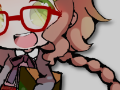 132.Filter (Style): Drop Shadow
 -
 133.Filter (Style): Extrude
 -
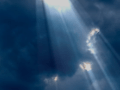 134.Filter (Style): God Rays
 -
 135.Filter (Draw): Parallel Gradation
 -
 136.Filter (Draw): Concentric Gradation
 -
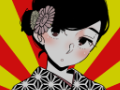 137.Filter (Draw): Radial Line Gradation
 -
 138.Filter (Draw): Radial Line
 -
 139.Filter (Draw): Speed Line
 -
 140.Filter (Draw): Clouds
 -
 141.Filter (Draw): QR Code
 -
 142.Filter (Smart): Watercolor Filter
 -
 143.Filter (Smart): Background Removal
 -
 144.Filter (Artistic): Anime Background
 -
 145.Filter (Artistic): Manga Background
 -
 146.Filter (Artistic): Chromatic Aberration (Color Shift, RGB Shift)
 -
 147.Filter (Artistic): Glitch
 -
 148.Filter (Artistic): Noise
 -
 149.Filter (Artistic): Retro Game
 -
 150.Filter (Artistic): Chrome
 -
 151.Filter (Artistic): Bloom
 -
 152.Filter (Artistic): Cross Filter
 -
 153.Filter (Artistic): Sheer
 -
 154.Filter (Pixelate): Pixelate Crystalize
 -
 155.Filter (Pixelate): Hexagonal Pixelate
 -
 156.Filter (Pixelate): Square Pixelate
 -
 157.Filter (Pixelate): Triangular Pixelate
 -
 158.Filter (Pixelate): Pointillize
 -
 159.Filter (Pixelate): Dots (Hexagonal)
 -
 160.Filter (Pixelate): Dots (Square)
 -
 161.Filter (Transform): Expansion
 -
 162.Filter (Transform): Fisheye Lens
 -
 163.Filter (Transform): Sphere Lens
 -
 164.Filter (Transform): Wave
 -
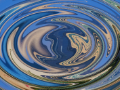 165.Filter (Transform): Ripple
 -
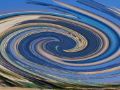 166.Filter (Transform): Twirl
 -
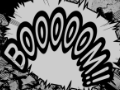 167.Filter (Transform): Polar Coordinates
 -
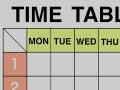 168.Filter (Frame): Table
 -
 169.Filter (Frame): Blur Frame
 -
 170.Filter (Movie): Rain
 -
 171.Adjustment Layer
 -
 172.Create an animation
 -
 173.Animation Feature: Video Mode
 -
 174.Animation Feature: Audio Tracks in Video Mode
 -
 175.Manga Function: Let's create a manga manuscript
 -
 176.Manga Function: Master the Manga creation tools
 -
 177.Manga Function: Make Use of Materials
 -
 178.Manga Function: Publishing and Printing your Manga
 -
 179.Changing Devices & File Transfers
 -
 180.Settings window details
 -
 181.Change the Background Color of the Canvas
 -
 182.Details of Brush Parameters
 -
 183.Bucket tool details
 -
 184.Layer Window Details
 -
 185.Transform tool details
 -
 186.Blend mode details
 -
 187.View Menu details
 -
 188.How to upload transparent PNG onto X
 -
 189.Importing and exporting Photoshop files (PSD)
 -
 190.Posting Multiple Pages of Comic to the Online Gallery
 -
 191.Gestures, Keyboard shortcuts (iOS,iPadOS,Android versions)
 -
 192.Gestures, Keyboard shortcuts (Windows Version)
 -
 193.Display a Crosshair Symbol When Hovering the Stylus Pen
 -
 194.Set Up Palm Rejection
 -
 195.Use a Promo Code
 -
 196.About ibisAccount: Creating an Account
 -
 197.About ibisAccount: Log In
 -
 198.About ibisAccount: Delete Your Account
- Artwork Rankings

- Artist Rankings
- Official accounts


