

This site properly manages your personal information as described in our Privacy Policy.
Here is our Privacy Policy.
 Information
Notifications
Tutorials
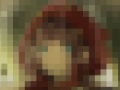
120. Filter (Blur): Mosaic
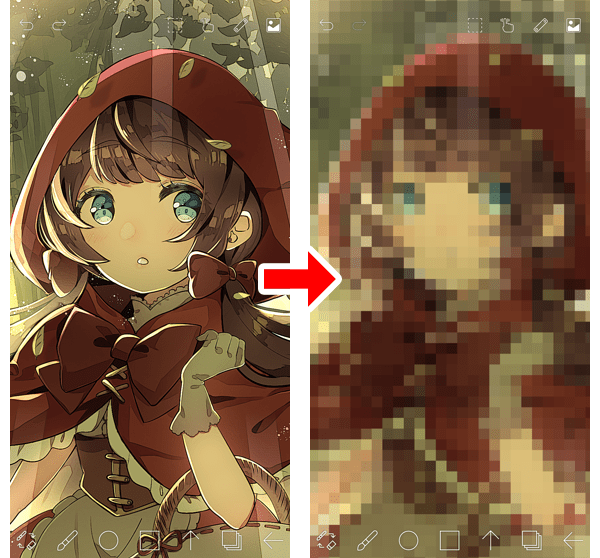
The function allows you to add Mosaic (Pixelization).
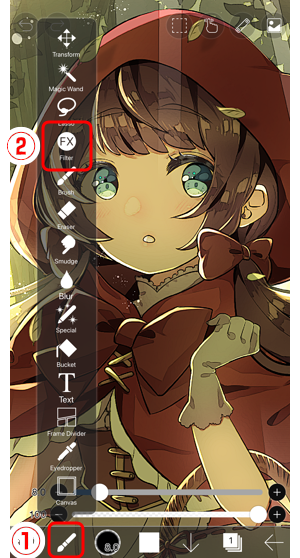
From ① the Tool Selection window, select ② Filter.
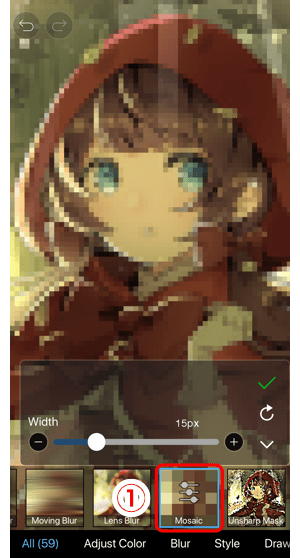
Select ① Mosaic.
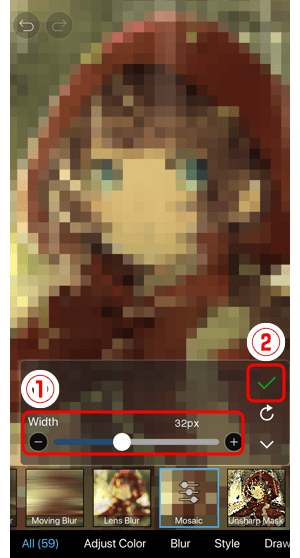
Drag the ①Slider to adjust. When finished, return to the canvas with ②✓ button .
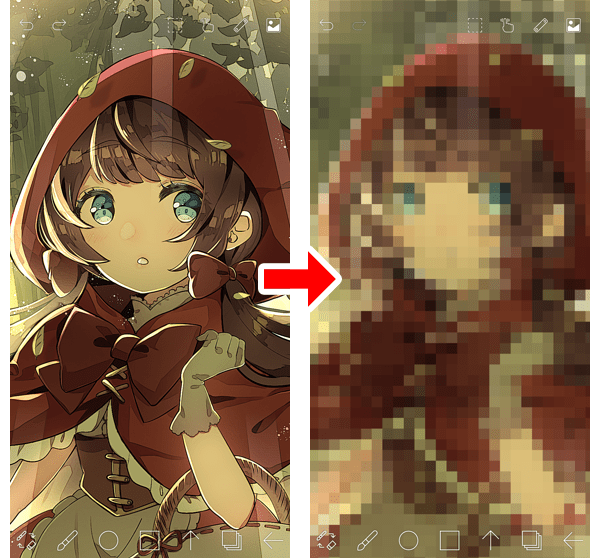
Finished.
Chapter
-
 01.Introduction
 -
 02.Start Creating an Artwork
 -
 03.Toolbar and Tool Selection
 -
 04.Do Your Draft Sketch by Hand
 -
 05.About Layers
 -
 06.Let's Trace
 -
 07.Undo and Eraser
 -
 08.Fine Tuning Using the Lasso tool
 -
 09.Check by Reflecting Horizontally
 -
 10.Select Colors in the Color window
 -
 11.Use Color Fill for the Undercoat
 -
 12.Turn Clipping On
 -
 13.Making a Gradation (Shading)
 -
 14.Select a color from the canvas or layer
 -
 15.Set the Time before Quick Eyedropper Starts
 -
 16.Create Highlights and Shadows
 -
 17.Paste a Texture
 -
 18.Let's Merge Layers
 -
 19.Sign Your Artwork
 -
 20.View Your Artwork
 -
 21.Post Your Artwork
 -
 22.Share Your Artwork
 -
 23.Open your ibisPaint data in Clip Studio Paint
 -
 24.Premium Membership / Ad Removal Upgrade (for iPhone/iPad, Android)
 -
 25.Premium Membership / Pro Upgrade (for Windows, Mac)
 -
 26.Smart Features and Smart Credits
 -
 27.Synchronizing the artworks on your device with Cloud Storage
 -
 28.Save the past state of an Artwork as an IPV file
 -
 29.Rearrange artworks
 -
 30.Artworks Folder Feature
 -
 31.Make custom brush
 -
 32.Create Original Brush Patterns
 -
 33.Installing and Exporting the Custom Brush
 -
 34.Release a Custom Brush to the Online Gallery
 -
 35.Brush Export and Import
 -
 36.Search For Brushes
 -
 37.Display images to use as reference
 -
 38.Add Color to the Analog Image using Multiply
 -
 39.Stabilizer
 -
 40.Layer: Clipping is convenient
 -
 41.Layer: Changing the color with Alpha Lock
 -
 42.Layer: Let's try using Screen Tone
 -
 43.Layer: Selection Layer
 -
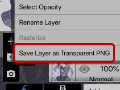 44.Layer: Save Layer as Transparent PNG command
 -
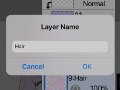 45.Layer: Naming your layers to manage them
 -
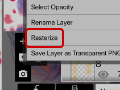 46.Layer: Rasterize
 -
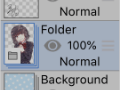 47.Layer: Layer Folders
 -
 48.Layer: Move/Transform Layer Folder
 -
 49.Layer: Add Layer from Canvas
 -
 50.Vector Layer
 -
 51.How to edit a brush shape
 -
 52.Contents Layer Selection
 -
 53.Apply Canvas Papers to your canvas
 -
 54.Display Grid on the Canvas
 -
 55.Export an Artwork (Save)
 -
 56.Export in CMYK (Save)
 -
 57.Save canvas as Transparent PNG
 -
 58.Make the background transparent with Eraser Bucket
 -
 59.Bucket Tool: Surrounding Fill / Surrounding Eraser
 -
 60.Putting texture to the floor with Perspective Form
 -
 61.Skirt with Mesh Form
 -
 62.Entering text with Text tool
 -
 63.Creating manga with Frame Divider tool
 -
 64.Enlarging the canvas with Canvas Size
 -
 65.Cutting off the canvas with Trim
 -
 66.Create a Manga Manuscript for Printing
 -
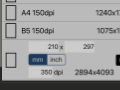 67.Canvas creation with resolution (dpi) specification
 -
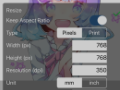 68.Changing image resolution with Resize
 -
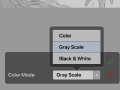 69.Change canvas Color Mode
 -
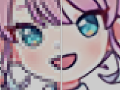 70.Output High-Resolution Images with AI (Artificial Intelligence)
 -
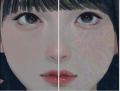 71.AI Disturbance
 -
 72.Texture with Material tool
 -
 73.Cut, Copy, Paste
 -
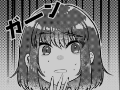 74.Ruler: Straight Ruler
 -
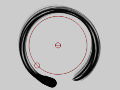 75.Ruler: Circular Ruler
 -
 76.Ruler: Elliptical Ruler
 -
 77.Ruler: Radial Ruler
 -
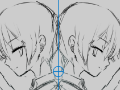 78.Ruler: Mirror Ruler
 -
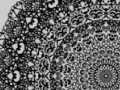 79.Ruler: Kaleidoscope Ruler
 -
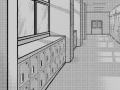 80.Ruler: Array Ruler
 -
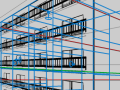 81.Ruler: Perspective Array Ruler
 -
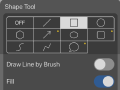 82.Shape Tool
 -
 83.Drawing Tool: Straight Line
 -
 84.Drawing Tool: Rectangle
 -
 85.Drawing Tool:Circle
 -
 86.Drawing Tool:Ellipse
 -
 87.Drawing Tool:Regular Polygon
 -
 88.Drawing Tool:Bezier Curve
 -
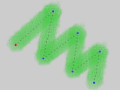 89.Drawing Tool:Polyline
 -
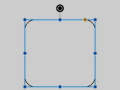 90.Shape Tool: Rounded Rectangle
 -
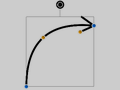 91.Shape Tool: Thin Arrow
 -
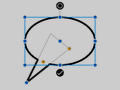 92.Shape Tool: Speech Bubble
 -
 93.Selection Area tool: Color Range
 -
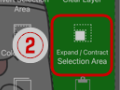 94.Selection Area tool: Expand/Contract Selection Area
 -
 95.Special: Liquify Pen
 -
 96.Special: Lasso Fill
 -
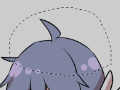 97.Special: Lasso Eraser
 -
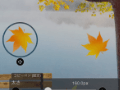 98.Special: Copy Pen
 -
 99.Filter (Adjust Color): Brightness & Contrast
 -
 100.Filter (Adjust Color): Tone Curve
 -
 101.Filter (Adjust Color): Hue Saturation Lightness
 -
 102.Filter (Adjust Color): Color Balance
 -
 103.Filter (Adjust Color): Extract Line Drawing
 -
 104.Filter (Adjust Color): Find Edges (Handwriting)
 -
 105.Filter (Adjust Color): Find Edges
 -
 106.Filter (Adjust Color): Change Drawing Color
 -
 107.Filter (Adjust Color): Mono Color
 -
 108.Filter (Adjust Color): Grayscale
 -
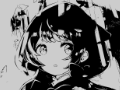 109.Filter (Adjust Color): Black & White
 -
 110.Filter (Adjust Color): Posterize
 -
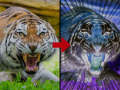 111.Filter (Adjust Color): Invert Color
 -
 112.Filter (Adjust Color): Gradation Map
 -
 113.Filter (Adjust Color): Levels Adjustment
 -
 114.Filter (Adjust Color): Replace Color
 -
 115.Filter (Blur): Gaussian Blur
 -
 116.Filter (Blur): Zooming Blur
 -
 117.Filter (Blur): Moving Blur
 -
 118.Filter (Blur):Spin Blur
 -
 119.Filter (Blur): Lens Blur
 -
 120.Filter (Blur): Mosaic
 -
 121.Filter (Blur): Unsharp Mask
 -
 122.Filter (Blur): Frosted Glass
 -
 123.Filter (Style): Stroke (Both)
 -
 124.Filter (Style): Stained Glass
 -
 125.Filter (Style): Wet Edge
 -
 126.Filter (Style): Glow (Inner)
 -
 127.Filter (Style): Bevel (Inner)
 -
 128.Filter (Style): Bevel (Outer)
 -
 129.Filter (Style): Emboss
 -
 130.Filter (Style): Relief
 -
 131.Filter (Style): Waterdrop (Rounded)
 -
 132.Filter (Style): Stroke (Outer)
 -
 133.Filter (Style): Glow (Outer)
 -
 134.Filter (Style): Satin
 -
 135.Filter (Style): Drop Shadow
 -
 136.Filter (Style): Extrude
 -
 137.Filter (Style): God Rays
 -
 138.Filter (Draw): Parallel Gradation
 -
 139.Filter (Draw): Concentric Gradation
 -
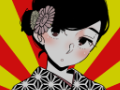 140.Filter (Draw): Radial Line Gradation
 -
 141.Filter (Draw): Radial Line
 -
 142.Filter (Draw): Speed Line
 -
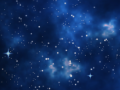 143.Filter (Draw): Clouds
 -
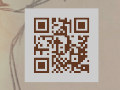 144.Filter (Draw): QR Code
 -
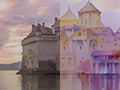 145.Filter (Smart): Watercolor Filter
 -
 146.Filter (Smart): Background Removal
 -
 147.Filter (Artistic): Anime Background
 -
 148.Filter (Artistic): Manga Background
 -
 149.Filter (Artistic): Chromatic Aberration (Color Shift, RGB Shift)
 -
 150.Filter (Artistic): Glitch
 -
 151.Filter (Artistic): Noise
 -
 152.Filter (Artistic): Retro Game
 -
 153.Filter (Artistic): Chrome
 -
 154.Filter (Artistic): Bloom
 -
 155.Filter (Artistic): Cross Filter
 -
 156.Filter (Artistic): Sheer
 -
 157.Filter (Pixelate): Pixelate Crystalize
 -
 158.Filter (Pixelate): Hexagonal Pixelate
 -
 159.Filter (Pixelate): Square Pixelate
 -
 160.Filter (Pixelate): Triangular Pixelate
 -
 161.Filter (Pixelate): Pointillize
 -
 162.Filter (Pixelate): Dots (Hexagonal)
 -
 163.Filter (Pixelate): Dots (Square)
 -
 164.Filter (Transform): Expansion
 -
 165.Filter (Transform): Fisheye Lens
 -
 166.Filter (Transform): Sphere Lens
 -
 167.Filter (Transform): Wave
 -
 168.Filter (Transform): Ripple
 -
 169.Filter (Transform): Twirl
 -
 170.Filter (Transform): Polar Coordinates
 -
 171.Filter (Frame): Table
 -
 172.Filter (Frame): Blur Frame
 -
 173.Filter (Movie): Rain
 -
 174.Adjustment Layer
 -
 175.Create an animation
 -
 176.Animation Feature: Video Mode
 -
 177.Animation Feature: Audio Tracks in Video Mode
 -
 178.Manga Function: Let's create a manga manuscript
 -
 179.Manga Function: Master the Manga creation tools
 -
 180.Manga Function: Make Use of Materials
 -
 181.Manga Function: Publishing and Printing your Manga
 -
 182.Changing Devices & File Transfers
 -
 183.Settings window details
 -
 184.Change the Background Color of the Canvas
 -
 185.Details of Brush Parameters
 -
 186.Bucket tool details
 -
 187.Layer Window Details
 -
 188.Transform tool details
 -
 189.Blend mode details
 -
 190.View Menu details
 -
 191.How to upload transparent PNG onto X
 -
 192.Importing and exporting Photoshop files (PSD)
 -
 193.Posting Multiple Pages of Comic to the Online Gallery
 -
 194.Gestures, Keyboard shortcuts (iOS,iPadOS,Android versions)
 -
 195.Gestures, Keyboard shortcuts (Windows Version)
 -
 196.Display a Crosshair Symbol When Hovering the Stylus Pen
 -
 197.Set Up Palm Rejection
 -
 198.Use a Promo Code
 -
 199.About ibisAccount: Creating an Account
 -
 200.About ibisAccount: Log In
 -
 201.About ibisAccount: Delete Your Account
- Artwork Rankings

- Artist Rankings
- Official accounts


Copyright(C) ibis inc. All rights reserved.