

 Information
Notifications
Tutorials
183. Settings window details
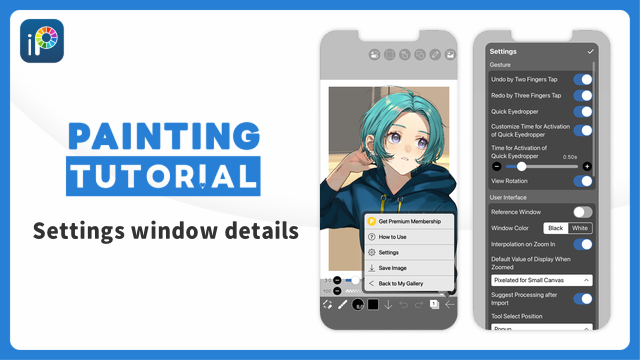
In ibisPaint, you can customize how the app works in the Settings window.
Some of the items shown differ depending on your device.
Opening the Settings Window
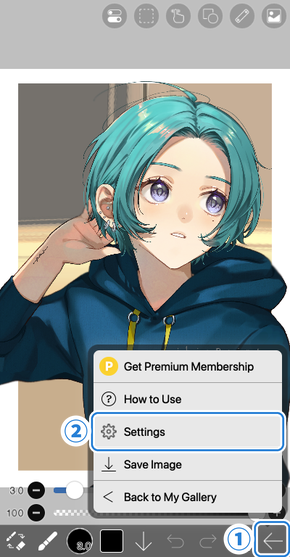
Tap the ①[ Back button ] and select ②[ Settings ].
Gesture
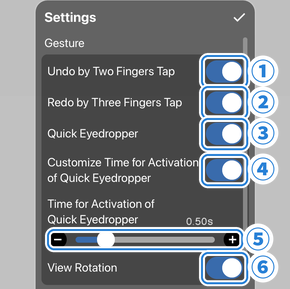
①[ Undo by Two Fingers Tap ] … Choose whether to undo by tapping the canvas with two fingers. This item is not shown in the Mac version.
②[ Redo by Three Fingers Tap ] … Choose whether to redo by tapping the canvas with three fingers. This item is not shown in the Mac version.
③[ Quick Eyedropper ] … Choose whether to activate the Quick Eyedropper by long-pressing the canvas when using the Brush tool. Turn it off if the Quick Eyedropper appears unintentionally. If it is on and the Quick Eyedropper appears unintentionally, you can cancel it by touching the screen with a second finger without lifting the first one.
④[ Customize Time for Activation of Quick Eyedropper ] … When turned on, you can set ⑤[ Time for Activation of Quick Eyedropper ].
⑤[ Time for Activation of Quick Eyedropper ] … Use the slider to set how long you need to long-press the canvas before the Quick Eyedropper activates when using the Brush tool.
⑥[ View Rotation ] … Choose whether the canvas can be rotated with two fingers.
User Interface
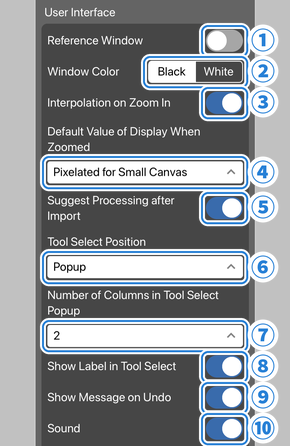
①[ Reference Window ] … Displays the Reference Window when turned on. You can also toggle its visibility from the View Menu.
②[ Window Color ] … Select the color theme of the windows.
③[ Interpolation on Zoom In ] … When the canvas is zoomed in, it is displayed smoothly if this is on, and pixelated like pixel art if this is off. This setting is saved for each artwork and can also be changed from the View Menu. You can change this setting when you open the Settings window from the canvas screen.
④[ Default Value of Display When Zoomed ] … Sets how "Display When Zoomed" is decided when you create a new artwork. The "Display When Zoomed" setting of each artwork can be changed from the View Menu. For details, see "View Menu details".
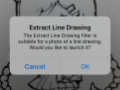
⑤[ Suggest Processing after Import ] … Choose whether to display an alert suggesting image processing after importing a picture. Even when it is turned off, you can still use Extract Line Drawing and Background Removal from the Filter tool. If you rarely process pictures, it is better to turn this off.
⑥[ Tool Select Position ] … Select where the Tool Select window appears from "Left", "Right" and "Popup".
⑦[ Number of Columns in Tool Select Popup ] … Sets the number of columns in the Tool Select Popup to 1-3. You can set this when ⑥[ Tool Select Position ] is "Popup". Depending on the screen size of your device, more columns than the number set here may be displayed.
⑧[ Show Label in Tool Select ] … When turned off, tool names are not displayed in the Tool Select window.
⑨[ Show Message on Undo ] … When turned off, hides the message that is displayed when you "Undo" or "Redo".
⑩[ Sound ] … When turned off, you can mute the sound effects of some operations such as "Undo" and "Redo". Even when turned on, there are no sound effects if your device is in silent mode. This item is not shown in the Windows/Mac version.
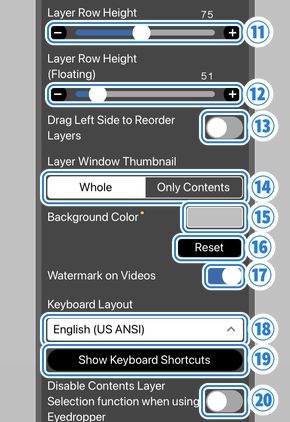
⑪[ Layer Row Height ] … Sets the height of layer rows in the Layer window.
⑫[ Layer Row Height (Floating) ] … Sets the height of layer rows in the Floating Layer Window. The Floating Layer Window is available on tablets and in the Windows/Mac version, and appears when you tap the floating window button or drag the move bar in the Layer window.
⑬[ Drag Left Side to Reorder Layers ] … When turned on, you can reorder layers by dragging the left side of a layer.
⑭[ Layer Window Thumbnail ] … Select "Whole" to display the entire layer in the thumbnail, or "Only Contents" to display only the drawn part of the layer.
⑮[ Background Color ] … Sets the background color of the canvas screen. This is a Premium feature in the iPhone/iPad/Android version and a Pro feature in the Windows/Mac version.
⑯[ Reset ] … Returns the background color of the canvas screen to the default color.
⑰[ Watermark on Videos ] … When turned off, the watermark (ibisPaint logo) is not displayed on saved videos. In the iPhone/iPad/Android version, you can turn this off if you have purchased the Ad Removal Upgrade, are a Premium Member, or use the paid version. In the Windows/Mac version, this is a Pro feature.
⑱[ Keyboard Layout ] … Select the layout of the connected keyboard from "English (US ANSI)" and "Japanese (JIS)". This item is shown only in the iPhone/iPad version.
⑲[ Show Keyboard Shortcuts ] … Displays a list of keyboard shortcuts.
⑳[ Disable Contents Layer Selection function when using Eyedropper ] … When turned on, the Layer Selection button (which displays the name of the layer containing the content drawn at that position) no longer appears when you use the Eyedropper tool or the Quick Eyedropper.
Depending on your device, the following items are also shown.
[ Invert Direction of Mouse Wheel ] … When turned on, the direction of zooming in and out of the canvas with the mouse wheel is reversed. This item is shown only in the Windows/Mac version.
[ Pan with Trackpad Scroll ] … When turned off, scrolling with two fingers on the trackpad zooms the canvas in and out, in the same way as the mouse wheel. When turned on, it moves the canvas in the same way as dragging while holding down the Space key. This item is shown only in the Mac version.
Cloud Storage
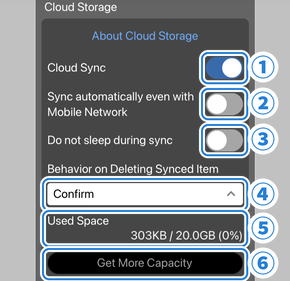
①[ Cloud Sync ] … Syncs the Cloud Storage and local files.
②[ Sync automatically even with Mobile Network ] … Automatically syncs the Cloud Storage and local files even when you are on a mobile network.
③[ Do not sleep during sync ] … Prevents your device from sleeping while the Cloud Storage and local files are syncing. Syncing stops temporarily while your device is asleep, so turn this on if you have many artworks and syncing takes a long time.
④[ Behavior on Deleting Synced Item ] … Sets the behavior when deleting a synced artwork. If you select "Confirm", you can choose the behavior every time you delete an artwork. If you select "Delete Only Local File", only the local file is deleted and the artwork on the cloud remains. If you select "Delete File on Cloud As Well", both the artwork on the cloud and the local file are deleted.
⑥[ Get More Capacity ] … You can increase the capacity of Cloud Storage from 64MB to 20GB by becoming a Premium Member. You can check the current usage in ⑤[ Used Space ].
Smart Feature / Purchases
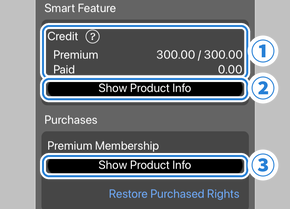
①[ Credit ] … Displays the remaining Smart Credits used for Smart features. Tap "?" to see a detailed explanation in "Smart Features and Smart Credits".
②[ Show Product Info ] … Opens the Smart Credit product page.
③[ Show Product Info ] … Opens the Premium Membership product page.
Depending on your device and purchase status, the following items are also shown.
[ Remove Ads ] … Opens the Ad Removal Upgrade product page. This item is shown only in the free iPhone/iPad/Android version.
[ Show Product Info ] (Pro Upgrade) … Opens the Pro Upgrade product page. This item is shown only in the Windows/Mac version.
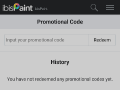
[ Redeem Promo Code ] … Opens the Promo Code input page. This button is not shown in the iPhone/iPad/Mac version.
Pressure Sensitivity / Touch Offset
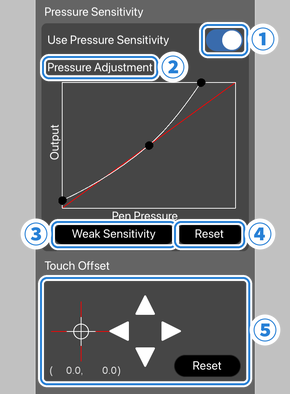
①[ Use Pressure Sensitivity ] … When turned on, the thickness of lines and other properties change according to pen pressure. It appears gray if your device does not support pressure sensitivity or a pressure-sensitive digital stylus is not connected.
②[ Pressure Adjustment ] … Adjust how pen pressure works with the graph. The farther left on the graph, the weaker the pen pressure, and the farther right, the stronger the pen pressure. Raising the curve makes lines thicker, and lowering it makes lines thinner. Some brushes become more opaque as you raise the curve and less opaque as you lower it, and some change both thickness and opacity at the same time.
③[ Weak Sensitivity ] … Makes pressure sensitivity weaker than the default setting.
④[ Reset ] … Returns the pressure sensitivity graph to its initial state.
⑤[ Touch Offset ] … If the drawing position feels a little off when drawing with a stylus or finger, tap the arrows to adjust the position. This function is mainly for styluses. Tap [ Reset ] to return the adjusted position to the original. In the Windows/Mac version, "Mouse Offset" is displayed instead.
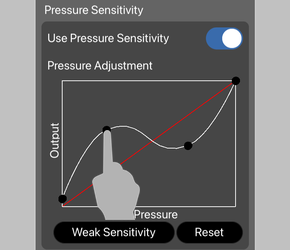
You can add a knob by tapping a point on the graph line where there is no knob. Knobs can be moved by dragging, so you can adjust pressure sensitivity in more detail.
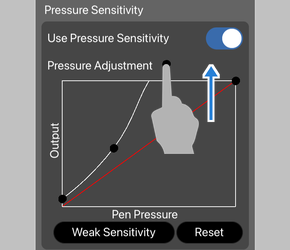
To delete a knob, drag it outside the frame of the graph.
Cursor
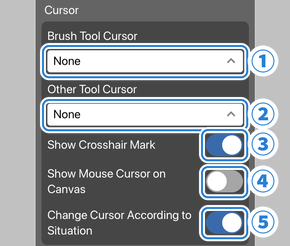
Sets the cursor shown when you use a mouse or a stylus that supports hovering.
①[ Brush Tool Cursor ] … Select the cursor shown while the Brush tool, Eraser tool, Smudge tool or a similar tool is selected from "None", "Thickness Mark" and "Brush Pattern".
②[ Other Tool Cursor ] … Select the cursor shown while other tools such as the Magic Wand tool are selected from "None" and "Tool Icon".
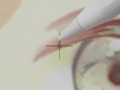
③[ Show Crosshair Mark ] … Choose whether to show the crosshair mark that indicates the position of the pen tip.
④[ Show Mouse Cursor on Canvas ] … Choose whether to show the mouse cursor when you move the mouse over the canvas.
⑤[ Change Cursor According to Situation ] … Choose whether the cursor changes its shape when you hover over windows or buttons that can be operated.
Stylus
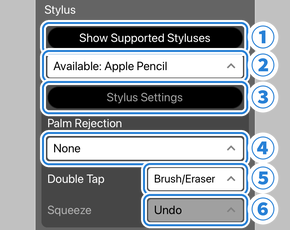
①[ Show Supported Styluses ] … Shows a list of digital styluses supported by ibisPaint. A digital stylus generally refers to a stylus with a battery that can communicate with your device. Many digital styluses support pressure sensitivity.
②[ Stylus Selection ] … Select a digital stylus to connect it with ibisPaint. For how to connect it, please refer to the manual of your digital stylus.
③[ Stylus Settings ] … Opens the settings screen of the digital stylus. Some digital styluses do not have a settings screen.
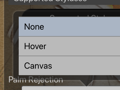
④[ Palm Rejection ] … Select how to prevent unintended operations by your fingers or palm when drawing with a digital stylus. For details, see "Set Up Palm Rejection". This item is not shown in the Mac version.
⑤[ Double Tap ]/⑥[ Squeeze ] … Sets the functions assigned to the buttons or gestures of the digital stylus. You can assign functions such as undo or switching tools. They are shown as "Double Tap" and "Squeeze" for Apple Pencil, and mainly as "Button 1" and "Button 2" for other digital styluses. The items shown differ depending on your digital stylus. Items that your digital stylus does not support appear gray.
Depending on your device and the connected digital stylus, the following items are also shown.
[ Barrel Roll ] … When turned off, the rotation angle of the pen is not applied to brushes, regardless of the Barrel Roll setting of each brush. This item is shown when you use an Apple Pencil on an iPad that supports Apple Pencil Pro.
[ Vibration Intensity ] … Sets the vibration intensity of the digital stylus. This item is shown in the Android version when a Lenovo Tab Pen Pro is connected.
For Professionals
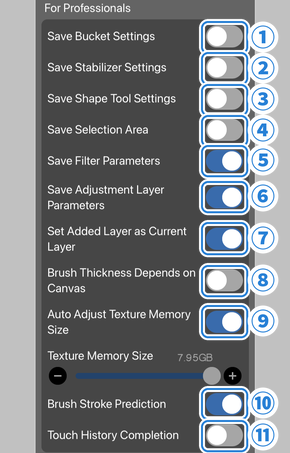
①[ Save Bucket Settings ] … When turned off, the settings of the Magic Wand tool and the Bucket tool (including Eraser Bucket, Surrounding Fill and Surrounding Eraser) return to their initial values each time you open an artwork. Turn this on if you want to keep your settings.
②[ Save Stabilizer Settings ] … When turned off, the Fade settings in the Stabilizer window (Force Fade, Start Length, End Length and Fade Shape) return to their initial values each time you open an artwork. Turn this on if you want to keep your settings.
③[ Save Shape Tool Settings ] … When turned off, the shape selected in the Shape tool returns to "Off" each time you open an artwork. Turn this on if you want to keep your settings.
④[ Save Selection Area ] … When turned off, the selection area is reset when you return to My Gallery.
⑤[ Save Filter Parameters ] … When turned off, parameters are reset to their initial values every time you start a filter. When turned on, the filter starts with the parameters you used last time.
⑥[ Save Adjustment Layer Parameters ] … When turned off, the parameters used when adding an adjustment layer are reset to their initial values. When turned on, the adjustment layer is added with the parameters you used last time.
⑦[ Set Added Layer as Current Layer ] … When turned off, adding a layer does not change the current layer, and the current layer stays as it is.
⑧[ Brush Thickness Depends on Canvas ] … When turned off, the brush thickness is always the same regardless of the canvas size. When turned on, the brush thickness changes according to the canvas size.
⑨[ Auto Adjust Texture Memory Size ] … Sets the memory used for creating artworks and other operations. When turned off, you can adjust the memory size with the slider. Increasing it may improve speed but may make the app unstable. Decreasing it may improve stability but may slow down the app. This item is not shown in the Windows/Mac version.
⑩[ Brush Stroke Prediction ] … Sets how brush strokes are processed. When turned on, drawing delay is reduced and the brush follows the pen tip more closely. Turn it off if the app feels slow or you do not like how it draws.
⑪[ Touch History Completion ] … When turned on, the movement of your pen or finger is captured in more detail, so curves do not become angular even when you draw quickly, and lines follow your hand movement more closely. This item is not shown in the Mac version.
Account
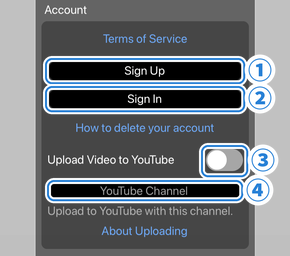
Settings for creating an ibisAccount, logging in, and uploading videos to YouTube. For details about ibisAccount, see "About ibisAccount: Creating an Account" and "About ibisAccount: Log In".
①[ Sign Up ] … Creates an ibisAccount.
②[ Sign In ] … Logs in to your ibisAccount.
③[ Upload Video to YouTube ] … Choose whether to upload videos of your artworks to YouTube. Set the YouTube channel to upload to in ④[ YouTube Channel ]. These items are shown only in the iPhone/iPad/Android version.
Privacy / Push Notification
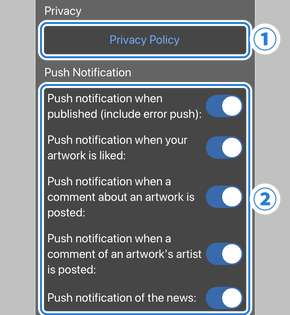
①[ Privacy ] … You can check the Privacy Policy. Depending on your region, items for setting the data provided for ads and analytics are also shown.
②[ Push Notification ] … Choose whether to receive push notifications for each situation, such as when your artwork is published or commented on. This item is not shown in the Windows version.
Reset / Other
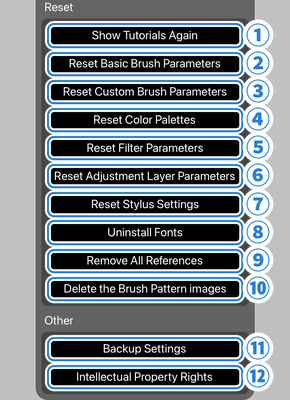
①[ Show Tutorials Again ] … Tap this to make the tutorials appear again.
②[ Reset Basic Brush Parameters ] … Resets all basic brush parameters to their default values.
③[ Reset Custom Brush Parameters ] … Resets all custom brush parameters to their default values.
④[ Reset Color Palettes ] … Resets the color palettes of the Color window to their initial state. Any palettes you have added are deleted.
⑤[ Reset Filter Parameters ] … Resets all filter parameters to their default values.
⑥[ Reset Adjustment Layer Parameters ] … Resets the parameters used when adding new adjustment layers to their default values for all adjustment layers.
⑦[ Reset Stylus Settings ] … Resets the digital stylus settings.
⑧[ Uninstall Fonts ] … Uninstalls all added fonts and web fonts. To delete fonts individually, you can delete them from the font list of the Text tool.
⑨[ Remove All References ] … Deletes all images loaded into the "Reference Mode" of the Reference window.
⑩[ Delete the Brush Pattern images ] … When you use a brush with an Original Brush Pattern, the Brush Pattern image is automatically downloaded and saved on your device. Tap this button to delete all saved Brush Pattern images. They are automatically downloaded again the next time you use the same brush.
⑪[ Backup Settings ] … Saves app settings such as brushes and color palettes as a "Settings File (ipcfg)".
⑫[ Intellectual Property Rights ] … Displays license information of the software and other materials used in ibisPaint.
 Settings window details
Chapter
-
 01.Introduction
 -
 02.Start Creating an Artwork
 -
 03.Toolbar and Tool Selection
 -
 04.Do Your Draft Sketch by Hand
 -
 05.About Layers
 -
 06.Let's Trace
 -
 07.Undo and Eraser
 -
 08.Fine Tuning Using the Lasso tool
 -
 09.Check by Reflecting Horizontally
 -
 10.Select Colors in the Color window
 -
 11.Use Color Fill for the Undercoat
 -
 12.Turn Clipping On
 -
 13.Making a Gradation (Shading)
 -
 14.Select a color from the canvas or layer
 -
 15.Set the Time before Quick Eyedropper Starts
 -
 16.Create Highlights and Shadows
 -
 17.Paste a Texture
 -
 18.Let's Merge Layers
 -
 19.Sign Your Artwork
 -
 20.View Your Artwork
 -
 21.Post Your Artwork
 -
 22.Share Your Artwork
 -
 23.Open your ibisPaint data in Clip Studio Paint
 -
 24.Premium Membership / Ad Removal Upgrade (for iPhone/iPad, Android)
 -
 25.Premium Membership / Pro Upgrade (for Windows, Mac)
 -
 26.Smart Features and Smart Credits
 -
 27.Synchronizing the artworks on your device with Cloud Storage
 -
 28.Save the past state of an Artwork as an IPV file
 -
 29.Rearrange artworks
 -
 30.Artworks Folder Feature
 -
 31.Make custom brush
 -
 32.Create Original Brush Patterns
 -
 33.Installing and Exporting the Custom Brush
 -
 34.Release a Custom Brush to the Online Gallery
 -
 35.Brush Export and Import
 -
 36.Search For Brushes
 -
 37.Display images to use as reference
 -
 38.Add Color to the Analog Image using Multiply
 -
 39.Stabilizer
 -
 40.Layer: Clipping is convenient
 -
 41.Layer: Changing the color with Alpha Lock
 -
 42.Layer: Let's try using Screen Tone
 -
 43.Layer: Selection Layer
 -
 44.Layer: Save Layer as Transparent PNG command
 -
 45.Layer: Naming your layers to manage them
 -
 46.Layer: Rasterize
 -
 47.Layer: Layer Folders
 -
 48.Layer: Move/Transform Layer Folder
 -
 49.Layer: Add Layer from Canvas
 -
 50.Vector Layer
 -
 51.How to edit a brush shape
 -
 52.Contents Layer Selection
 -
 53.Apply Canvas Papers to your canvas
 -
 54.Display Grid on the Canvas
 -
 55.Export an Artwork (Save)
 -
 56.Export in CMYK (Save)
 -
 57.Save canvas as Transparent PNG
 -
 58.Make the background transparent with Eraser Bucket
 -
 59.Bucket Tool: Surrounding Fill / Surrounding Eraser
 -
 60.Putting texture to the floor with Perspective Form
 -
 61.Skirt with Mesh Form
 -
 62.Entering text with Text tool
 -
 63.Creating manga with Frame Divider tool
 -
 64.Enlarging the canvas with Canvas Size
 -
 65.Cutting off the canvas with Trim
 -
 66.Create a Manga Manuscript for Printing
 -
 67.Canvas creation with resolution (dpi) specification
 -
 68.Changing image resolution with Resize
 -
 69.Change canvas Color Mode
 -
 70.Output High-Resolution Images with AI (Artificial Intelligence)
 -
 71.AI Disturbance
 -
 72.Texture with Material tool
 -
 73.Cut, Copy, Paste
 -
 74.Ruler: Straight Ruler
 -
 75.Ruler: Circular Ruler
 -
 76.Ruler: Elliptical Ruler
 -
 77.Ruler: Radial Ruler
 -
 78.Ruler: Mirror Ruler
 -
 79.Ruler: Kaleidoscope Ruler
 -
 80.Ruler: Array Ruler
 -
 81.Ruler: Perspective Array Ruler
 -
 82.Shape Tool
 -
 83.Drawing Tool: Straight Line
 -
 84.Drawing Tool: Rectangle
 -
 85.Drawing Tool:Circle
 -
 86.Drawing Tool:Ellipse
 -
 87.Drawing Tool:Regular Polygon
 -
 88.Drawing Tool:Bezier Curve
 -
 89.Drawing Tool:Polyline
 -
 90.Shape Tool: Rounded Rectangle
 -
 91.Shape Tool: Thin Arrow
 -
 92.Shape Tool: Speech Bubble
 -
 93.Selection Area tool: Color Range
 -
 94.Selection Area tool: Expand/Contract Selection Area
 -
 95.Special: Liquify Pen
 -
 96.Special: Lasso Fill
 -
 97.Special: Lasso Eraser
 -
 98.Special: Copy Pen
 -
 99.Filter (Adjust Color): Brightness & Contrast
 -
 100.Filter (Adjust Color): Tone Curve
 -
 101.Filter (Adjust Color): Hue Saturation Lightness
 -
 102.Filter (Adjust Color): Color Balance
 -
 103.Filter (Adjust Color): Extract Line Drawing
 -
 104.Filter (Adjust Color): Find Edges (Handwriting)
 -
 105.Filter (Adjust Color): Find Edges
 -
 106.Filter (Adjust Color): Change Drawing Color
 -
 107.Filter (Adjust Color): Mono Color
 -
 108.Filter (Adjust Color): Grayscale
 -
 109.Filter (Adjust Color): Black & White
 -
 110.Filter (Adjust Color): Posterize
 -
 111.Filter (Adjust Color): Invert Color
 -
 112.Filter (Adjust Color): Gradation Map
 -
 113.Filter (Adjust Color): Levels Adjustment
 -
 114.Filter (Adjust Color): Replace Color
 -
 115.Filter (Blur): Gaussian Blur
 -
 116.Filter (Blur): Zooming Blur
 -
 117.Filter (Blur): Moving Blur
 -
 118.Filter (Blur):Spin Blur
 -
 119.Filter (Blur): Lens Blur
 -
 120.Filter (Blur): Mosaic
 -
 121.Filter (Blur): Unsharp Mask
 -
 122.Filter (Blur): Frosted Glass
 -
 123.Filter (Style): Stroke (Both)
 -
 124.Filter (Style): Stained Glass
 -
 125.Filter (Style): Wet Edge
 -
 126.Filter (Style): Glow (Inner)
 -
 127.Filter (Style): Bevel (Inner)
 -
 128.Filter (Style): Bevel (Outer)
 -
 129.Filter (Style): Emboss
 -
 130.Filter (Style): Relief
 -
 131.Filter (Style): Waterdrop (Rounded)
 -
 132.Filter (Style): Stroke (Outer)
 -
 133.Filter (Style): Glow (Outer)
 -
 134.Filter (Style): Satin
 -
 135.Filter (Style): Drop Shadow
 -
 136.Filter (Style): Extrude
 -
 137.Filter (Style): God Rays
 -
 138.Filter (Draw): Parallel Gradation
 -
 139.Filter (Draw): Concentric Gradation
 -
 140.Filter (Draw): Radial Line Gradation
 -
 141.Filter (Draw): Radial Line
 -
 142.Filter (Draw): Speed Line
 -
 143.Filter (Draw): Clouds
 -
 144.Filter (Draw): QR Code
 -
 145.Filter (Smart): Watercolor Filter
 -
 146.Filter (Smart): Background Removal
 -
 147.Filter (Artistic): Anime Background
 -
 148.Filter (Artistic): Manga Background
 -
 149.Filter (Artistic): Chromatic Aberration (Color Shift, RGB Shift)
 -
 150.Filter (Artistic): Glitch
 -
 151.Filter (Artistic): Noise
 -
 152.Filter (Artistic): Retro Game
 -
 153.Filter (Artistic): Chrome
 -
 154.Filter (Artistic): Bloom
 -
 155.Filter (Artistic): Cross Filter
 -
 156.Filter (Artistic): Sheer
 -
 157.Filter (Pixelate): Pixelate Crystalize
 -
 158.Filter (Pixelate): Hexagonal Pixelate
 -
 159.Filter (Pixelate): Square Pixelate
 -
 160.Filter (Pixelate): Triangular Pixelate
 -
 161.Filter (Pixelate): Pointillize
 -
 162.Filter (Pixelate): Dots (Hexagonal)
 -
 163.Filter (Pixelate): Dots (Square)
 -
 164.Filter (Transform): Expansion
 -
 165.Filter (Transform): Fisheye Lens
 -
 166.Filter (Transform): Sphere Lens
 -
 167.Filter (Transform): Wave
 -
 168.Filter (Transform): Ripple
 -
 169.Filter (Transform): Twirl
 -
 170.Filter (Transform): Polar Coordinates
 -
 171.Filter (Frame): Table
 -
 172.Filter (Frame): Blur Frame
 -
 173.Filter (Movie): Rain
 -
 174.Adjustment Layer
 -
 175.Create an animation
 -
 176.Animation Feature: Video Mode
 -
 177.Animation Feature: Audio Tracks in Video Mode
 -
 178.Manga Function: Let's create a manga manuscript
 -
 179.Manga Function: Master the Manga creation tools
 -
 180.Manga Function: Make Use of Materials
 -
 181.Manga Function: Publishing and Printing your Manga
 -
 182.Changing Devices & File Transfers
 -
 183.Settings window details
 -
 184.Change the Background Color of the Canvas
 -
 185.Details of Brush Parameters
 -
 186.Bucket tool details
 -
 187.Layer Window Details
 -
 188.Transform tool details
 -
 189.Blend mode details
 -
 190.View Menu details
 -
 191.How to upload transparent PNG onto X
 -
 192.Importing and exporting Photoshop files (PSD)
 -
 193.Posting Multiple Pages of Comic to the Online Gallery
 -
 194.Gestures, Keyboard shortcuts (iOS,iPadOS,Android versions)
 -
 195.Gestures, Keyboard shortcuts (Windows Version)
 -
 196.Display a Crosshair Symbol When Hovering the Stylus Pen
 -
 197.Set Up Palm Rejection
 -
 198.Use a Promo Code
 -
 199.About ibisAccount: Creating an Account
 -
 200.About ibisAccount: Log In
 -
 201.About ibisAccount: Delete Your Account
- Artwork Rankings

- Artist Rankings
- Official accounts


