

 Information
Notifications
Tutorials
177. Animation Feature: Audio Tracks in Video Mode
- Create an animation
- Animation Feature: Video Mode
- Animation Feature: Audio Tracks in Video Mode
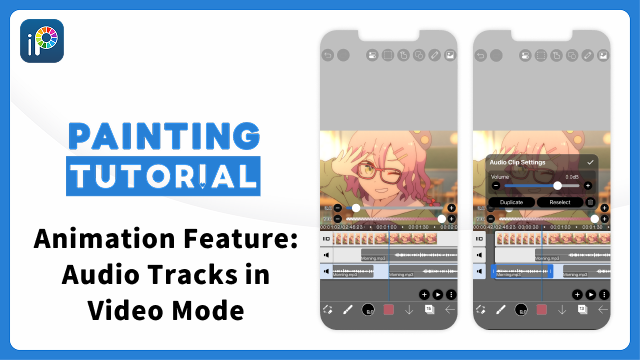
In an animation artwork in Video Mode, you can add audio tracks to add sound to your animation. Here, we will explain how to operate audio tracks and audio clips.
※ For information on how to convert to Video Mode, see "Animation Feature: Video Mode".
Audio Track Operations
Adding an Audio Track
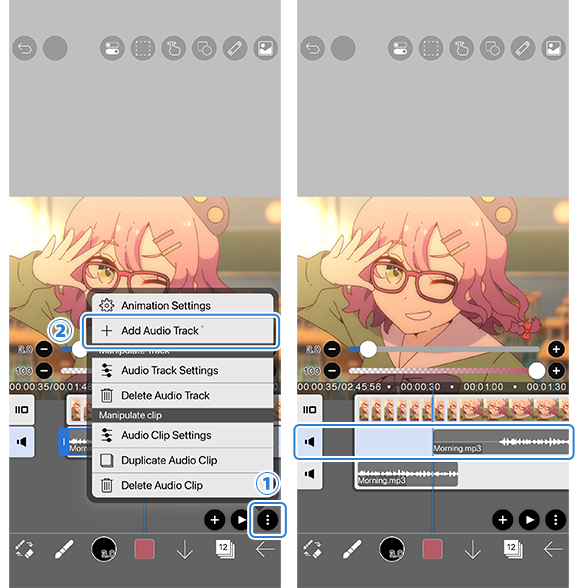
Tap ①[ ︙ Button ] on the timeline and select ②[ Add Audio Track ].
The file selection dialog will open. Select an audio file or video file. If you select a video file, only the audio will be added as a clip; the video content will not be added.
An audio track will be added to the timeline.
Audio Track Settings
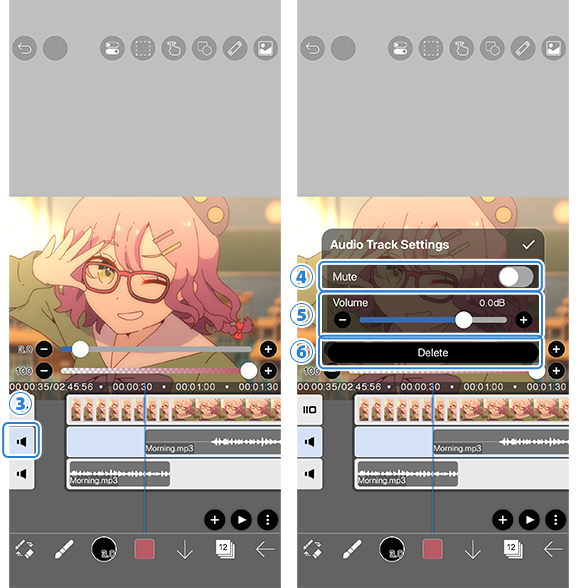
Tap the ③[ Track Marker ] of the selected audio track to open the [ Audio Track Settings Window ].
④[ Mute ]: Mutes all audio clips on the audio track.
⑤[ Volume ]: Adjusts the volume of all audio clips on the audio track.
⑥[ Delete ]: Deletes the audio track.
The Audio Track Settings Window can also be opened by selecting [ Audio Track Settings ] from the menu that appears when you tap [ ︙ Button ] while an audio track is selected.
Audio Clip Operations
Adding an Audio Clip
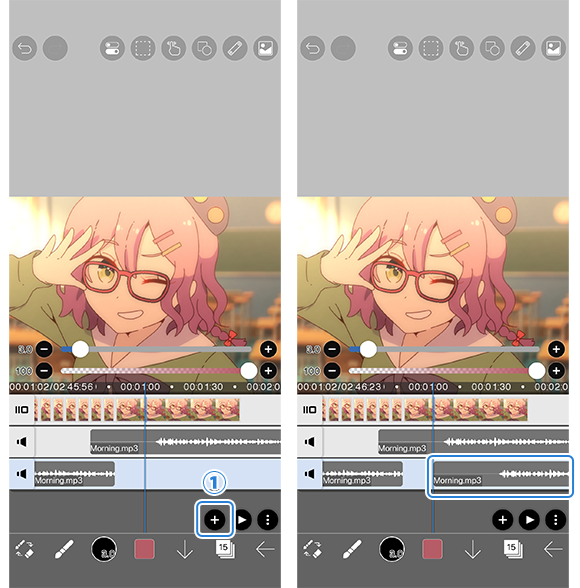
With an audio track selected, tap ①[ Add Button ] and select the desired audio file. An audio clip will be added starting at the playhead position.
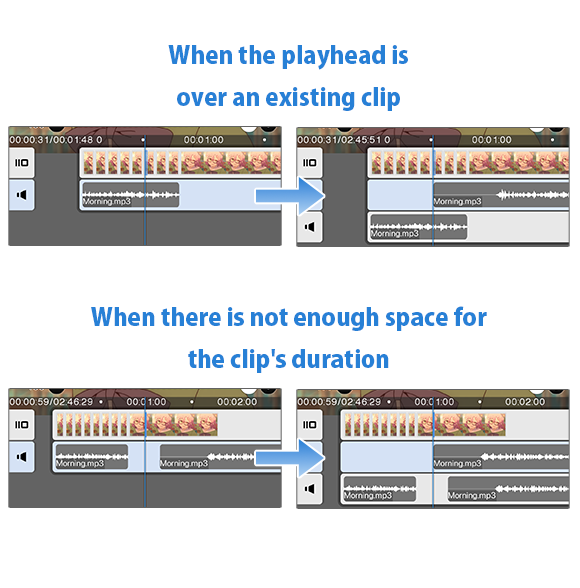
If another audio clip is at the playhead position, or there is not enough space at the insertion point for the clip's duration, a new audio track will be created automatically and the clip will be added there.
Moving an Audio Clip
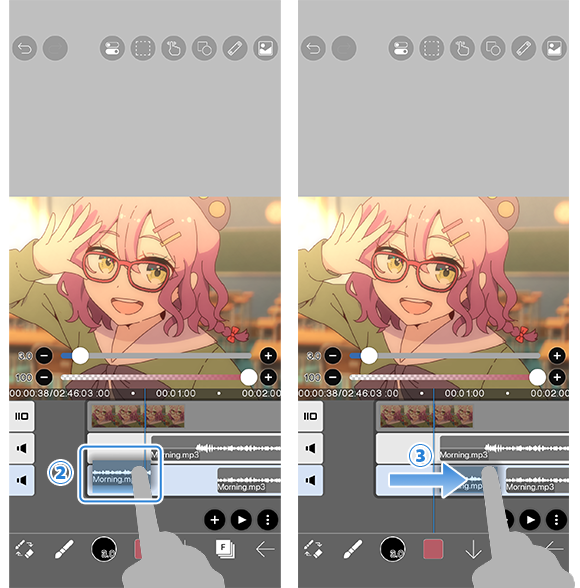
②[ Long-press ] an audio clip to lift it up, then ③[ drag ] to move it.
Audio clips can be placed at any position on the audio track.
Adjusting the Playback Range
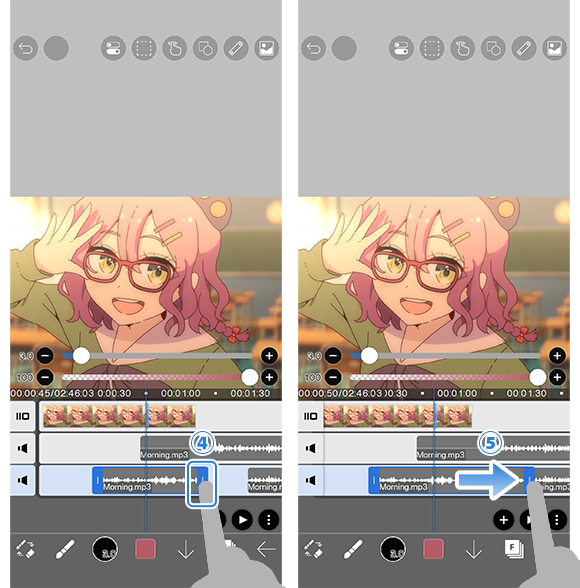
⑤[ Drag ] the ④[ Handle ] on the current clip marker to adjust the playback range.
If the duration becomes longer than the original audio file, the audio will loop.
Audio Clip Settings
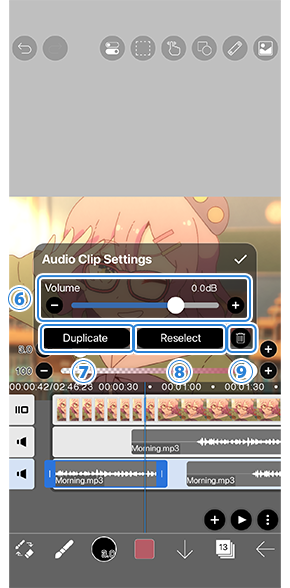
Tap the selected audio clip to open the [ Audio Clip Settings Window ].
⑥[ Volume ]: Adjusts the volume of the selected audio clip individually.
⑦[ Duplicate ]: Duplicates the selected audio clip.
⑧[ Reselect ]: Replaces the referenced audio file with a different file. Volume and other settings are carried over.
⑨[ Delete ]: Deletes the selected audio clip.
The Audio Clip Settings Window can also be opened by selecting [ Audio Clip Settings ] from the menu that appears when you tap [ ︙ Button ] while an audio clip is selected.
If the audio file has been moved or deleted and the link is broken, a warning will be displayed on the audio clip. Tap [ Reselect ] in [ Audio Clip Settings ] to replace it with another file.
Overall Volume Adjustment
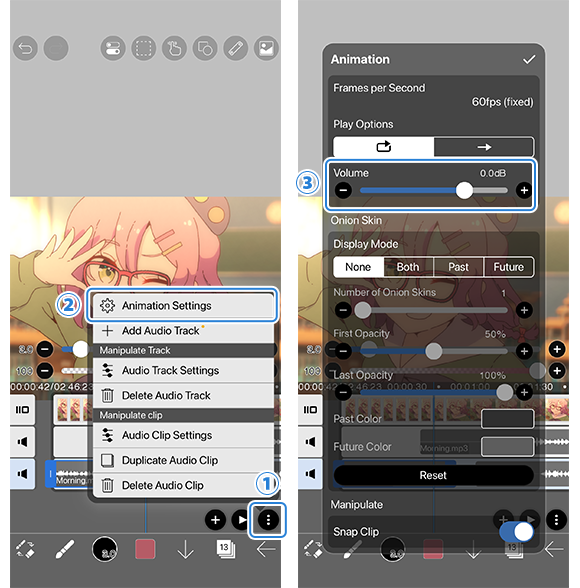
Select ②[ Animation Settings ] from ①[ ︙ Button ] to open the [ Animation Settings Window ].
You can adjust the overall volume including all tracks from ③[ Volume ].
Volume is determined by the sum: "Clip Volume + Track Volume + Overall Volume".
Chapter
-
 01.Introduction
 -
 02.Start Creating an Artwork
 -
 03.Toolbar and Tool Selection
 -
 04.Do Your Draft Sketch by Hand
 -
 05.About Layers
 -
 06.Let's Trace
 -
 07.Undo and Eraser
 -
 08.Fine Tuning Using the Lasso tool
 -
 09.Check by Reflecting Horizontally
 -
 10.Select Colors in the Color window
 -
 11.Use Color Fill for the Undercoat
 -
 12.Turn Clipping On
 -
 13.Making a Gradation (Shading)
 -
 14.Select a color from the canvas or layer
 -
 15.Set the Time before Quick Eyedropper Starts
 -
 16.Create Highlights and Shadows
 -
 17.Paste a Texture
 -
 18.Let's Merge Layers
 -
 19.Sign Your Artwork
 -
 20.View Your Artwork
 -
 21.Post Your Artwork
 -
 22.Share Your Artwork
 -
 23.Open your ibisPaint data in Clip Studio Paint
 -
 24.Premium Membership / Ad Removal Upgrade (for iPhone/iPad, Android)
 -
 25.Premium Membership / Pro Upgrade (for Windows, Mac)
 -
 26.Smart Features and Smart Credits
 -
 27.Synchronizing the artworks on your device with Cloud Storage
 -
 28.Save the past state of an Artwork as an IPV file
 -
 29.Rearrange artworks
 -
 30.Artworks Folder Feature
 -
 31.Make custom brush
 -
 32.Create Original Brush Patterns
 -
 33.Installing and Exporting the Custom Brush
 -
 34.Release a Custom Brush to the Online Gallery
 -
 35.Brush Export and Import
 -
 36.Search For Brushes
 -
 37.Display images to use as reference
 -
 38.Add Color to the Analog Image using Multiply
 -
 39.Stabilizer
 -
 40.Layer: Clipping is convenient
 -
 41.Layer: Changing the color with Alpha Lock
 -
 42.Layer: Let's try using Screen Tone
 -
 43.Layer: Selection Layer
 -
 44.Layer: Save Layer as Transparent PNG command
 -
 45.Layer: Naming your layers to manage them
 -
 46.Layer: Rasterize
 -
 47.Layer: Layer Folders
 -
 48.Layer: Move/Transform Layer Folder
 -
 49.Layer: Add Layer from Canvas
 -
 50.Vector Layer
 -
 51.How to edit a brush shape
 -
 52.Contents Layer Selection
 -
 53.Apply Canvas Papers to your canvas
 -
 54.Display Grid on the Canvas
 -
 55.Export an Artwork (Save)
 -
 56.Export in CMYK (Save)
 -
 57.Save canvas as Transparent PNG
 -
 58.Make the background transparent with Eraser Bucket
 -
 59.Bucket Tool: Surrounding Fill / Surrounding Eraser
 -
 60.Putting texture to the floor with Perspective Form
 -
 61.Skirt with Mesh Form
 -
 62.Entering text with Text tool
 -
 63.Creating manga with Frame Divider tool
 -
 64.Enlarging the canvas with Canvas Size
 -
 65.Cutting off the canvas with Trim
 -
 66.Create a Manga Manuscript for Printing
 -
 67.Canvas creation with resolution (dpi) specification
 -
 68.Changing image resolution with Resize
 -
 69.Change canvas Color Mode
 -
 70.Output High-Resolution Images with AI (Artificial Intelligence)
 -
 71.AI Disturbance
 -
 72.Texture with Material tool
 -
 73.Cut, Copy, Paste
 -
 74.Ruler: Straight Ruler
 -
 75.Ruler: Circular Ruler
 -
 76.Ruler: Elliptical Ruler
 -
 77.Ruler: Radial Ruler
 -
 78.Ruler: Mirror Ruler
 -
 79.Ruler: Kaleidoscope Ruler
 -
 80.Ruler: Array Ruler
 -
 81.Ruler: Perspective Array Ruler
 -
 82.Shape Tool
 -
 83.Drawing Tool: Straight Line
 -
 84.Drawing Tool: Rectangle
 -
 85.Drawing Tool:Circle
 -
 86.Drawing Tool:Ellipse
 -
 87.Drawing Tool:Regular Polygon
 -
 88.Drawing Tool:Bezier Curve
 -
 89.Drawing Tool:Polyline
 -
 90.Shape Tool: Rounded Rectangle
 -
 91.Shape Tool: Thin Arrow
 -
 92.Shape Tool: Speech Bubble
 -
 93.Selection Area tool: Color Range
 -
 94.Selection Area tool: Expand/Contract Selection Area
 -
 95.Special: Liquify Pen
 -
 96.Special: Lasso Fill
 -
 97.Special: Lasso Eraser
 -
 98.Special: Copy Pen
 -
 99.Filter (Adjust Color): Brightness & Contrast
 -
 100.Filter (Adjust Color): Tone Curve
 -
 101.Filter (Adjust Color): Hue Saturation Lightness
 -
 102.Filter (Adjust Color): Color Balance
 -
 103.Filter (Adjust Color): Extract Line Drawing
 -
 104.Filter (Adjust Color): Find Edges (Handwriting)
 -
 105.Filter (Adjust Color): Find Edges
 -
 106.Filter (Adjust Color): Change Drawing Color
 -
 107.Filter (Adjust Color): Mono Color
 -
 108.Filter (Adjust Color): Grayscale
 -
 109.Filter (Adjust Color): Black & White
 -
 110.Filter (Adjust Color): Posterize
 -
 111.Filter (Adjust Color): Invert Color
 -
 112.Filter (Adjust Color): Gradation Map
 -
 113.Filter (Adjust Color): Levels Adjustment
 -
 114.Filter (Adjust Color): Replace Color
 -
 115.Filter (Blur): Gaussian Blur
 -
 116.Filter (Blur): Zooming Blur
 -
 117.Filter (Blur): Moving Blur
 -
 118.Filter (Blur):Spin Blur
 -
 119.Filter (Blur): Lens Blur
 -
 120.Filter (Blur): Mosaic
 -
 121.Filter (Blur): Unsharp Mask
 -
 122.Filter (Blur): Frosted Glass
 -
 123.Filter (Style): Stroke (Both)
 -
 124.Filter (Style): Stained Glass
 -
 125.Filter (Style): Wet Edge
 -
 126.Filter (Style): Glow (Inner)
 -
 127.Filter (Style): Bevel (Inner)
 -
 128.Filter (Style): Bevel (Outer)
 -
 129.Filter (Style): Emboss
 -
 130.Filter (Style): Relief
 -
 131.Filter (Style): Waterdrop (Rounded)
 -
 132.Filter (Style): Stroke (Outer)
 -
 133.Filter (Style): Glow (Outer)
 -
 134.Filter (Style): Satin
 -
 135.Filter (Style): Drop Shadow
 -
 136.Filter (Style): Extrude
 -
 137.Filter (Style): God Rays
 -
 138.Filter (Draw): Parallel Gradation
 -
 139.Filter (Draw): Concentric Gradation
 -
 140.Filter (Draw): Radial Line Gradation
 -
 141.Filter (Draw): Radial Line
 -
 142.Filter (Draw): Speed Line
 -
 143.Filter (Draw): Clouds
 -
 144.Filter (Draw): QR Code
 -
 145.Filter (Smart): Watercolor Filter
 -
 146.Filter (Smart): Background Removal
 -
 147.Filter (Artistic): Anime Background
 -
 148.Filter (Artistic): Manga Background
 -
 149.Filter (Artistic): Chromatic Aberration (Color Shift, RGB Shift)
 -
 150.Filter (Artistic): Glitch
 -
 151.Filter (Artistic): Noise
 -
 152.Filter (Artistic): Retro Game
 -
 153.Filter (Artistic): Chrome
 -
 154.Filter (Artistic): Bloom
 -
 155.Filter (Artistic): Cross Filter
 -
 156.Filter (Artistic): Sheer
 -
 157.Filter (Pixelate): Pixelate Crystalize
 -
 158.Filter (Pixelate): Hexagonal Pixelate
 -
 159.Filter (Pixelate): Square Pixelate
 -
 160.Filter (Pixelate): Triangular Pixelate
 -
 161.Filter (Pixelate): Pointillize
 -
 162.Filter (Pixelate): Dots (Hexagonal)
 -
 163.Filter (Pixelate): Dots (Square)
 -
 164.Filter (Transform): Expansion
 -
 165.Filter (Transform): Fisheye Lens
 -
 166.Filter (Transform): Sphere Lens
 -
 167.Filter (Transform): Wave
 -
 168.Filter (Transform): Ripple
 -
 169.Filter (Transform): Twirl
 -
 170.Filter (Transform): Polar Coordinates
 -
 171.Filter (Frame): Table
 -
 172.Filter (Frame): Blur Frame
 -
 173.Filter (Movie): Rain
 -
 174.Adjustment Layer
 -
 175.Create an animation
 -
 176.Animation Feature: Video Mode
 -
 177.Animation Feature: Audio Tracks in Video Mode
 -
 178.Manga Function: Let's create a manga manuscript
 -
 179.Manga Function: Master the Manga creation tools
 -
 180.Manga Function: Make Use of Materials
 -
 181.Manga Function: Publishing and Printing your Manga
 -
 182.Changing Devices & File Transfers
 -
 183.Settings window details
 -
 184.Change the Background Color of the Canvas
 -
 185.Details of Brush Parameters
 -
 186.Bucket tool details
 -
 187.Layer Window Details
 -
 188.Transform tool details
 -
 189.Blend mode details
 -
 190.View Menu details
 -
 191.How to upload transparent PNG onto X
 -
 192.Importing and exporting Photoshop files (PSD)
 -
 193.Posting Multiple Pages of Comic to the Online Gallery
 -
 194.Gestures, Keyboard shortcuts (iOS,iPadOS,Android versions)
 -
 195.Gestures, Keyboard shortcuts (Windows Version)
 -
 196.Display a Crosshair Symbol When Hovering the Stylus Pen
 -
 197.Set Up Palm Rejection
 -
 198.Use a Promo Code
 -
 199.About ibisAccount: Creating an Account
 -
 200.About ibisAccount: Log In
 -
 201.About ibisAccount: Delete Your Account
- Artwork Rankings

- Artist Rankings
- Official accounts


