

 Information
Notifications
Tutorials
131. Filter (Style): Relief HQ
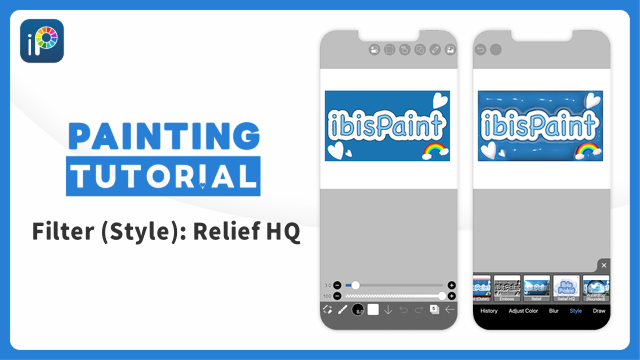
With the "Relief HQ" filter, you can apply an effect of making the layer pop out from the screen. The smoothness of the 3D shape has been improved over the older "Relief" filter, and a variety of materials such as metal and plastic can now be applied. It can also use a technique called "ray tracing" to perform even higher-quality 3D rendering.
It can now also turn several layers into one 3D object at once. Here, we will show you how to turn a logo drawn across separate layers into a 3D object just as it is.
Applying Relief HQ
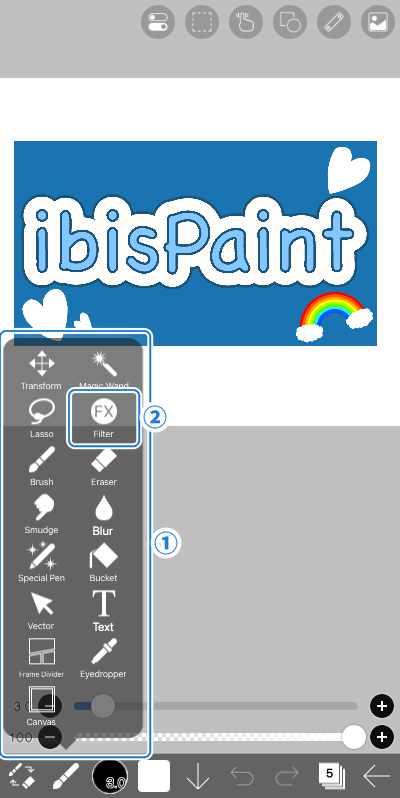
Open ①[ Tool Select window ] and select ②[ Filter ].
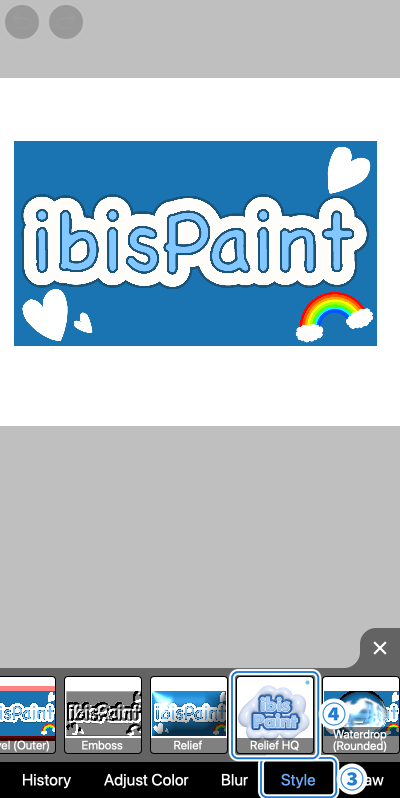
Select ④[ Relief HQ ] from the ③[ Style ] category.
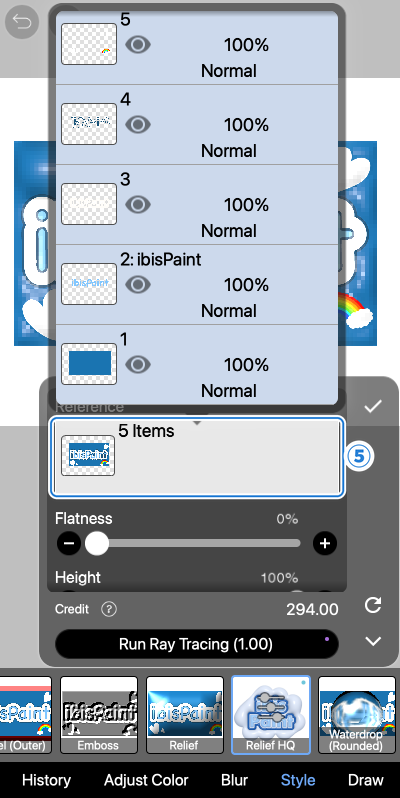
Tap ⑤[ Reference ] and select the layers you want to turn into a 3D object. Here, select all of the layers from 1 to 5. The shape you get by stacking the selected layers becomes a single 3D object.
If you include the background layer as well, the whole picture rises like a board with the logo standing out on top of it. If you leave the background out and select only the logo layers, only the shape of the logo becomes a 3D object.
When you use Reference to select layers other than the one you are on, as we do here, a new layer to draw the 3D object on is created automatically at the moment you tap the ✓ Button. It is created directly above the topmost layer among the ones you selected.
When you use Reference to select only the layer you are on, no new layer is created and the picture on that layer is replaced by the 3D object.
Deciding the shape and the material
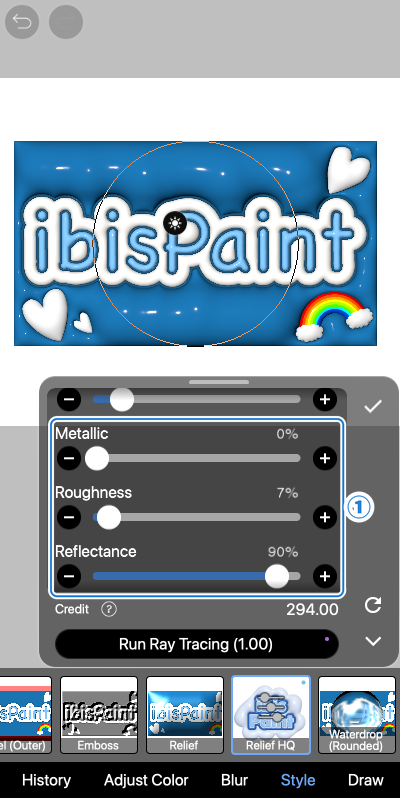
Adjust the shape and the material of the 3D object with the ①[ sliders ]. The result is applied to the canvas right away, so move them around and look for the appearance you like.
The items you can adjust are grouped, from top to bottom, into "shape", "material" and "light".
First, the top three decide the shape of the 3D object.
Flatness … Decides how flat the high parts of the 3D object become. Increase it and you get a shape with a flat top, like a board cut out of a sheet.
Height … Decides how much the 3D object rises. Increase it and it gets thicker.
Smoothness … Decides how smooth the surface is. Increase it and the edges are rounded off. Note that this is the only item where a larger value takes longer to calculate, so the result may take a while to appear. It is easier to work with if you keep it low until the look is decided, and raise it at the end.
The next three decide what the surface looks like it is made of.
Metallic … Decides how metallic it looks. Increase it for metal, decrease it for a plastic or stone-like material.
Roughness … Decides how rough the surface is. Decrease it for a glossy, mirror-like surface, increase it for a matte one.
Reflectance … Decides how much of the surrounding light is reflected on the surface.
The remaining items decide how the light falls on it.
Highlight Size … Decides the size of the bright part where the light hits.
Highlight … Selects the color of that bright part, that is, the color of the light source.
Ambient Intensity … Decides the strength of the light that softly lights the whole object. Decrease it and the shadows get darker, giving a higher-contrast finish.
Environment Color … Selects the color of that light which softly lights the whole object.
Realistic Tone … Turn it on to keep the parts where the light hits strongly from being blown out to pure white, giving a natural brightness like a photograph.
The direction the light comes from is set on the canvas rather than with a slider. Drag inside the circle shown on the canvas to change which direction the light comes from.
Finishing with ray tracing
With "Run Ray Tracing", you can use ray tracing technology to perform a realistic 3D rendering that calculates the reflections on the surface of the 3D object and the surroundings mirrored on it. Use it when you want a more lifelike finish.
※ "Run Ray Tracing" consumes Smart Credits. The number shown on the button is the number of credits used for one run.
For details about Smart Credits, see "Smart Features and Smart Credits".
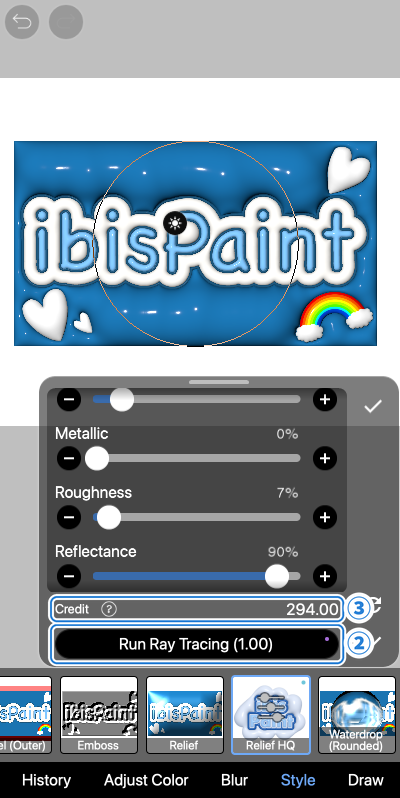
Once you have finished adjusting the parameters, tap ②[ Run Ray Tracing ]. Your ③[ Credit ] balance is shown above the button.
※ If you change a parameter after running ray tracing, the result of the ray tracing calculation is discarded. When you run ray tracing again after changing a parameter, Smart Credits are consumed again.
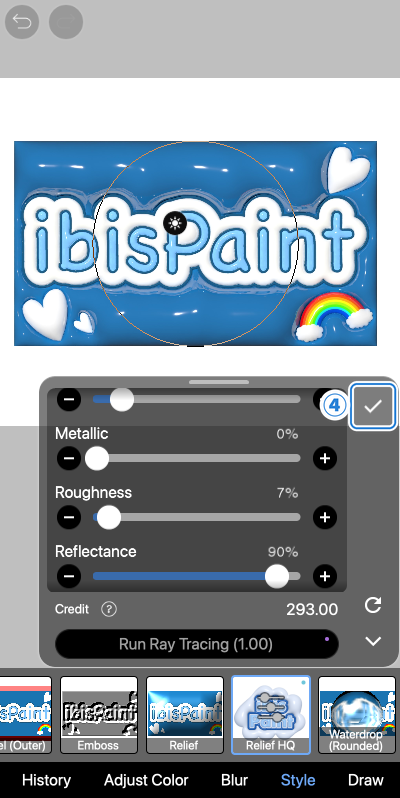
When the ray tracing calculation is done, the result including the reflections on the surface and the surroundings mirrored on it is shown on the canvas. Once you are happy with the finish, tap the ④[ ✓ Button ] to apply it. A new layer is created above the layers you referenced, and the 3D object is drawn on it.
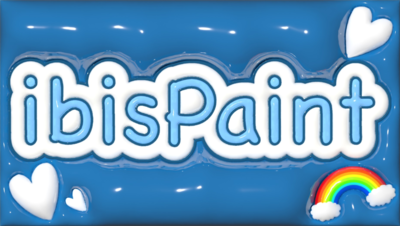
And you're finished. Hiding the layers of the original picture lets you show only the picture that has become a 3D object.
Depending on how you combine the materials, "Relief HQ" can finish your work as a metal logo or as a picture with a stone-like material. As long as your work is split into layers, you can turn a finished picture into a 3D object as it is. Try out various settings and look for the finish that suits your work.
 Filter (Style): Relief HQ
Chapter
-
 01.Introduction
 -
 02.Start Creating an Artwork
 -
 03.Toolbar and Tool Selection
 -
 04.Do Your Draft Sketch by Hand
 -
 05.About Layers
 -
 06.Let's Trace
 -
 07.Undo and Eraser
 -
 08.Fine Tuning Using the Lasso tool
 -
 09.Check by Reflecting Horizontally
 -
 10.Select Colors in the Color window
 -
 11.Use Color Fill for the Undercoat
 -
 12.Turn Clipping On
 -
 13.Making a Gradation (Shading)
 -
 14.Select a color from the canvas or layer
 -
 15.Set the Time before Quick Eyedropper Starts
 -
 16.Create Highlights and Shadows
 -
 17.Paste a Texture
 -
 18.Let's Merge Layers
 -
 19.Sign Your Artwork
 -
 20.View Your Artwork
 -
 21.Post Your Artwork
 -
 22.Share Your Artwork
 -
 23.Open your ibisPaint data in Clip Studio Paint
 -
 24.Premium Membership / Ad Removal Upgrade (for iPhone/iPad, Android)
 -
 25.Premium Membership / Pro Upgrade (for Windows, Mac)
 -
 26.Smart Features and Smart Credits
 -
 27.Synchronizing the artworks on your device with Cloud Storage
 -
 28.Save the past state of an Artwork as an IPV file
 -
 29.Rearrange artworks
 -
 30.Artworks Folder Feature
 -
 31.Make custom brush
 -
 32.Create Original Brush Patterns
 -
 33.Installing and Exporting the Custom Brush
 -
 34.Release a Custom Brush to the Online Gallery
 -
 35.Brush Export and Import
 -
 36.Search For Brushes
 -
 37.Display images to use as reference
 -
 38.Add Color to the Analog Image using Multiply
 -
 39.Stabilizer
 -
 40.Layer: Clipping is convenient
 -
 41.Layer: Changing the color with Alpha Lock
 -
 42.Layer: Let's try using Screen Tone
 -
 43.Layer: Selection Layer
 -
 44.Layer: Save Layer as Transparent PNG command
 -
 45.Layer: Naming your layers to manage them
 -
 46.Layer: Rasterize
 -
 47.Layer: Layer Folders
 -
 48.Layer: Move/Transform Layer Folder
 -
 49.Layer: Add Layer from Canvas
 -
 50.Vector Layer
 -
 51.How to edit a brush shape
 -
 52.Contents Layer Selection
 -
 53.Apply Canvas Papers to your canvas
 -
 54.Display Grid on the Canvas
 -
 55.Export an Artwork (Save)
 -
 56.Export in CMYK (Save)
 -
 57.Save canvas as Transparent PNG
 -
 58.Make the background transparent with Eraser Bucket
 -
 59.Bucket Tool: Surrounding Fill / Surrounding Eraser
 -
 60.Putting texture to the floor with Perspective Form
 -
 61.Skirt with Mesh Form
 -
 62.Entering text with Text tool
 -
 63.Creating manga with Frame Divider tool
 -
 64.Enlarging the canvas with Canvas Size
 -
 65.Cutting off the canvas with Trim
 -
 66.Create a Manga Manuscript for Printing
 -
 67.Canvas creation with resolution (dpi) specification
 -
 68.Changing image resolution with Resize
 -
 69.Change canvas Color Mode
 -
 70.Output High-Resolution Images with AI (Artificial Intelligence)
 -
 71.AI Disturbance
 -
 72.Texture with Material tool
 -
 73.Cut, Copy, Paste
 -
 74.Ruler: Straight Ruler
 -
 75.Ruler: Circular Ruler
 -
 76.Ruler: Elliptical Ruler
 -
 77.Ruler: Radial Ruler
 -
 78.Ruler: Mirror Ruler
 -
 79.Ruler: Kaleidoscope Ruler
 -
 80.Ruler: Array Ruler
 -
 81.Ruler: Perspective Array Ruler
 -
 82.Shape Tool
 -
 83.Drawing Tool: Straight Line
 -
 84.Drawing Tool: Rectangle
 -
 85.Drawing Tool:Circle
 -
 86.Drawing Tool:Ellipse
 -
 87.Drawing Tool:Regular Polygon
 -
 88.Drawing Tool:Bezier Curve
 -
 89.Drawing Tool:Polyline
 -
 90.Shape Tool: Rounded Rectangle
 -
 91.Shape Tool: Thin Arrow
 -
 92.Shape Tool: Speech Bubble
 -
 93.Selection Area tool: Color Range
 -
 94.Selection Area tool: Expand/Contract Selection Area
 -
 95.Special: Liquify Pen
 -
 96.Special: Lasso Fill
 -
 97.Special: Lasso Eraser
 -
 98.Special: Copy Pen
 -
 99.Filter (Adjust Color): Brightness & Contrast
 -
 100.Filter (Adjust Color): Tone Curve
 -
 101.Filter (Adjust Color): Hue Saturation Lightness
 -
 102.Filter (Adjust Color): Color Balance
 -
 103.Filter (Adjust Color): Extract Line Drawing
 -
 104.Filter (Adjust Color): Find Edges (Handwriting)
 -
 105.Filter (Adjust Color): Find Edges
 -
 106.Filter (Adjust Color): Change Drawing Color
 -
 107.Filter (Adjust Color): Mono Color
 -
 108.Filter (Adjust Color): Grayscale
 -
 109.Filter (Adjust Color): Black & White
 -
 110.Filter (Adjust Color): Posterize
 -
 111.Filter (Adjust Color): Invert Color
 -
 112.Filter (Adjust Color): Gradation Map
 -
 113.Filter (Adjust Color): Levels Adjustment
 -
 114.Filter (Adjust Color): Replace Color
 -
 115.Filter (Blur): Gaussian Blur
 -
 116.Filter (Blur): Zooming Blur
 -
 117.Filter (Blur): Moving Blur
 -
 118.Filter (Blur):Spin Blur
 -
 119.Filter (Blur): Lens Blur
 -
 120.Filter (Blur): Mosaic
 -
 121.Filter (Blur): Unsharp Mask
 -
 122.Filter (Blur): Frosted Glass
 -
 123.Filter (Style): Stroke (Both)
 -
 124.Filter (Style): Stained Glass
 -
 125.Filter (Style): Wet Edge
 -
 126.Filter (Style): Glow (Inner)
 -
 127.Filter (Style): Bevel (Inner)
 -
 128.Filter (Style): Bevel (Outer)
 -
 129.Filter (Style): Emboss
 -
 130.Filter (Style): Relief
 -
 131.Filter (Style): Relief HQ
 -
 132.Filter (Style): Waterdrop (Rounded)
 -
 133.Filter (Style): Stroke (Outer)
 -
 134.Filter (Style): Glow (Outer)
 -
 135.Filter (Style): Satin
 -
 136.Filter (Style): Drop Shadow
 -
 137.Filter (Style): Extrude
 -
 138.Filter (Style): God Rays
 -
 139.Filter (Draw): Parallel Gradation
 -
 140.Filter (Draw): Concentric Gradation
 -
 141.Filter (Draw): Radial Line Gradation
 -
 142.Filter (Draw): Radial Line
 -
 143.Filter (Draw): Speed Line
 -
 144.Filter (Draw): Clouds
 -
 145.Filter (Draw): QR Code
 -
 146.Filter (Smart): Watercolor Filter
 -
 147.Filter (Smart): Background Removal
 -
 148.Filter (Artistic): Anime Background
 -
 149.Filter (Artistic): Manga Background
 -
 150.Filter (Artistic): Chromatic Aberration (Color Shift, RGB Shift)
 -
 151.Filter (Artistic): Glitch
 -
 152.Filter (Artistic): Noise
 -
 153.Filter (Artistic): Retro Game
 -
 154.Filter (Artistic): Chrome
 -
 155.Filter (Artistic): Bloom
 -
 156.Filter (Artistic): Cross Filter
 -
 157.Filter (Artistic): Sheer
 -
 158.Filter (Pixelate): Pixelate Crystalize
 -
 159.Filter (Pixelate): Hexagonal Pixelate
 -
 160.Filter (Pixelate): Square Pixelate
 -
 161.Filter (Pixelate): Triangular Pixelate
 -
 162.Filter (Pixelate): Pointillize
 -
 163.Filter (Pixelate): Dots (Hexagonal)
 -
 164.Filter (Pixelate): Dots (Square)
 -
 165.Filter (Transform): Expansion
 -
 166.Filter (Transform): Fisheye Lens
 -
 167.Filter (Transform): Sphere Lens
 -
 168.Filter (Transform): Wave
 -
 169.Filter (Transform): Ripple
 -
 170.Filter (Transform): Twirl
 -
 171.Filter (Transform): Polar Coordinates
 -
 172.Filter (Frame): Table
 -
 173.Filter (Frame): Blur Frame
 -
 174.Filter (Movie): Rain
 -
 175.Adjustment Layer
 -
 176.Create an animation
 -
 177.Animation Feature: Video Mode
 -
 178.Animation Feature: Audio Tracks in Video Mode
 -
 179.Manga Function: Let's create a manga manuscript
 -
 180.Manga Function: Master the Manga creation tools
 -
 181.Manga Function: Make Use of Materials
 -
 182.Manga Function: Publishing and Printing your Manga
 -
 183.Changing Devices & File Transfers
 -
 184.Settings window details
 -
 185.Change the Background Color of the Canvas
 -
 186.Details of Brush Parameters
 -
 187.Bucket tool details
 -
 188.Layer Window Details
 -
 189.Transform tool details
 -
 190.Blend mode details
 -
 191.View Menu details
 -
 192.How to upload transparent PNG onto X
 -
 193.Importing and exporting Photoshop files (PSD)
 -
 194.Posting Multiple Pages of Comic to the Online Gallery
 -
 195.Gestures, Keyboard shortcuts (iOS,iPadOS,Android versions)
 -
 196.Gestures, Keyboard shortcuts (Windows Version)
 -
 197.Display a Crosshair Symbol When Hovering the Stylus Pen
 -
 198.Set Up Palm Rejection
 -
 199.Use a Promo Code
 -
 200.About ibisAccount: Creating an Account
 -
 201.About ibisAccount: Log In
 -
 202.About ibisAccount: Delete Your Account
- Artwork Rankings

- Artist Rankings
- Official accounts


